Rules
The Rules page is used to create and edit rules to match your monitoring requirements.
It is made up of three sections, Default Rules, Custom Rules, and Rule Groups.
Default and Custom Rules
FraudShield includes a set of pre-configured rules, developed by in-house domain specialists. These Default Rules are designed to capture widely observed risk behaviours across multiple sectors and offer a reliable starting point. You are free to modify and customise these rules to align with your organisation's unique requirements.
You can also build Custom Rules from the ground up using the Rule Builder, defining custom fields, thresholds, and layered conditions.
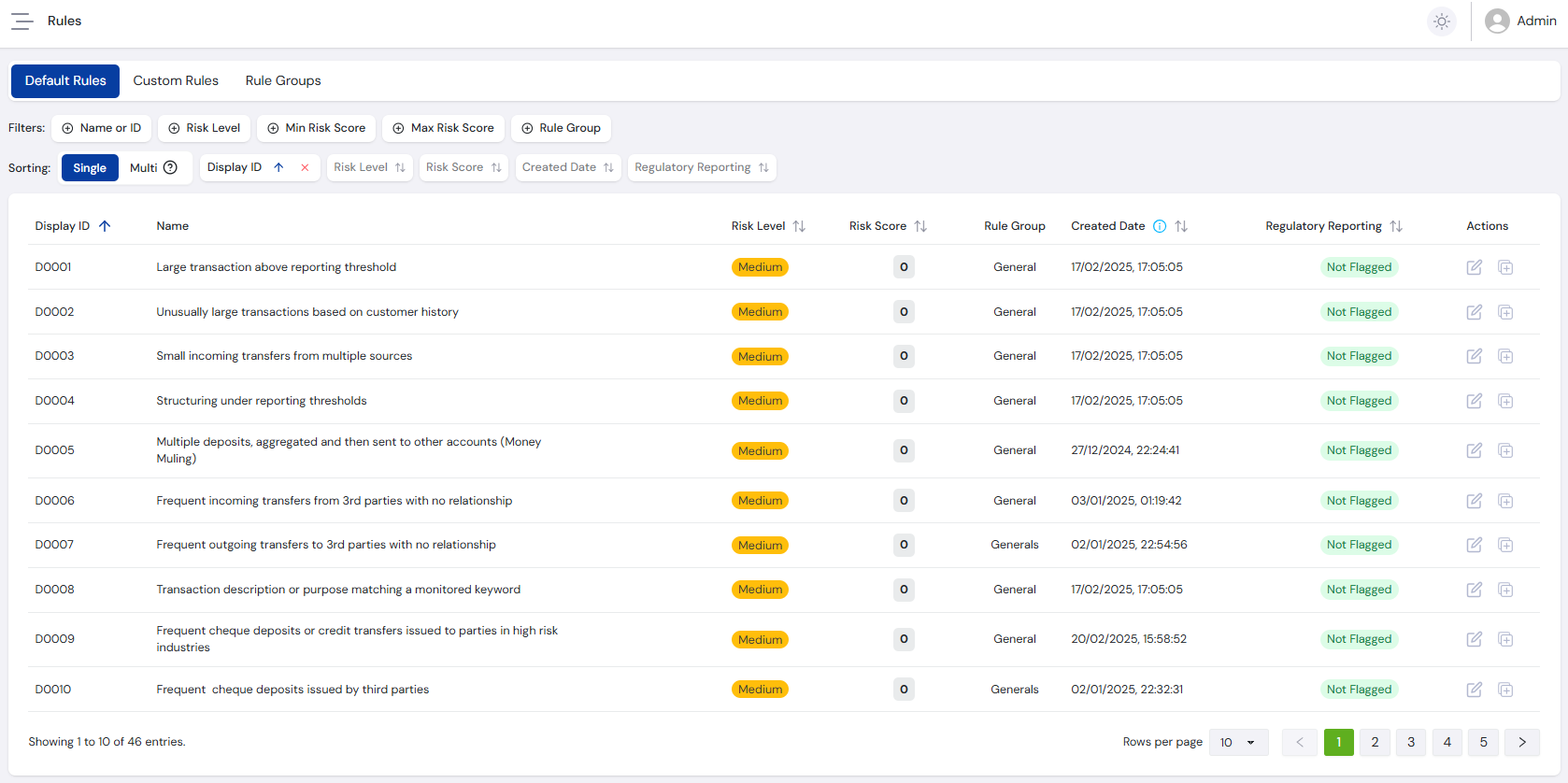
The Default Rules tab lists all rules defined by the FraudShield team, while the Custom Rules tab lists your generated rules as you create them. Both tabs behave almost identically.
Search Filters
Use the filters below to find specific rules. Each field is type-specific to help ensure the correct format.
- The Name or ID field supports partial matching, useful for finding rules with specific keywords.
- If you've set up Rule Groups, use them to filter quickly by group.
Included Filters
| Filter | Type | Description |
|---|---|---|
| Name or ID | Text Search | Search rules by either their Name or ID fields, partial matching available. |
| Risk Level | Dropdown | Filter rules based on their risk level: Urgent, High, Medium or Low. |
| Min Risk Score | Number | Lower range for rule risk score. |
| Max Risk Score | Number | Upper range for rule risk score. |
| Rule Group | Dropdown | Filter rules based on their Rule Group. |
Rule Table
After applying search filters, the results appear in a paginated table:
Rule Information Columns
| Column | Description |
|---|---|
| Display ID | Unique identifier for the rule, automatically assigned by the system in ascending order. Default rules have a D prefix, custom rules have a C prefix. |
| Name | User-defined name. |
| Risk Level | Risk level of the rule, set by the user. Options are Urgent, High, Medium or Low. |
| Risk Score | A numeric value representing the severity of the rule. This score contributes to the overall risk profile when a case is raised. |
| Rule Group | Category used to organise the rule within the application. |
| Created Date | Date and time the rule was created. |
| Regulatory Reporting | When enabled, any case raised by this rule will be flagged for regulatory reporting. |
| Actions | Available actions for the rule (see below). |
Rule Actions
- Add Rule Custom Rules - Located at the top right of the page, takes you to the Rule Builder to start with a fresh rule. Only custom rules can be added, as the default rule list is maintained by the system. For more information on how to build a rule, see the What is a rule? or Rule Builder guides.
- Edit Rule Default Rules Custom Rules - Located in the rule table action items, takes you to the Rule Builder to edit a rule that has existing parameters. For more information, see the What is a rule? or Rule Builder guides.
- Duplicate Rule Default Rules Custom Rules - Located in the rule table action items, copies the existing rule as a new custom rule. All rule information is copied, with
(Copy)appended to the rule name. - Revert Rule Default Rules - Located in the rule table action items, reverts a default rule to its original state. This action is irreversible - back up any changes before proceeding.
- Delete Rule Custom Rules - Located in the rule table action items, permanently deletes a custom rule. This action is irreversible - back up any changes before proceeding. Only custom rules can be deleted, as the default rule list is maintained by the system.
Rule Groups
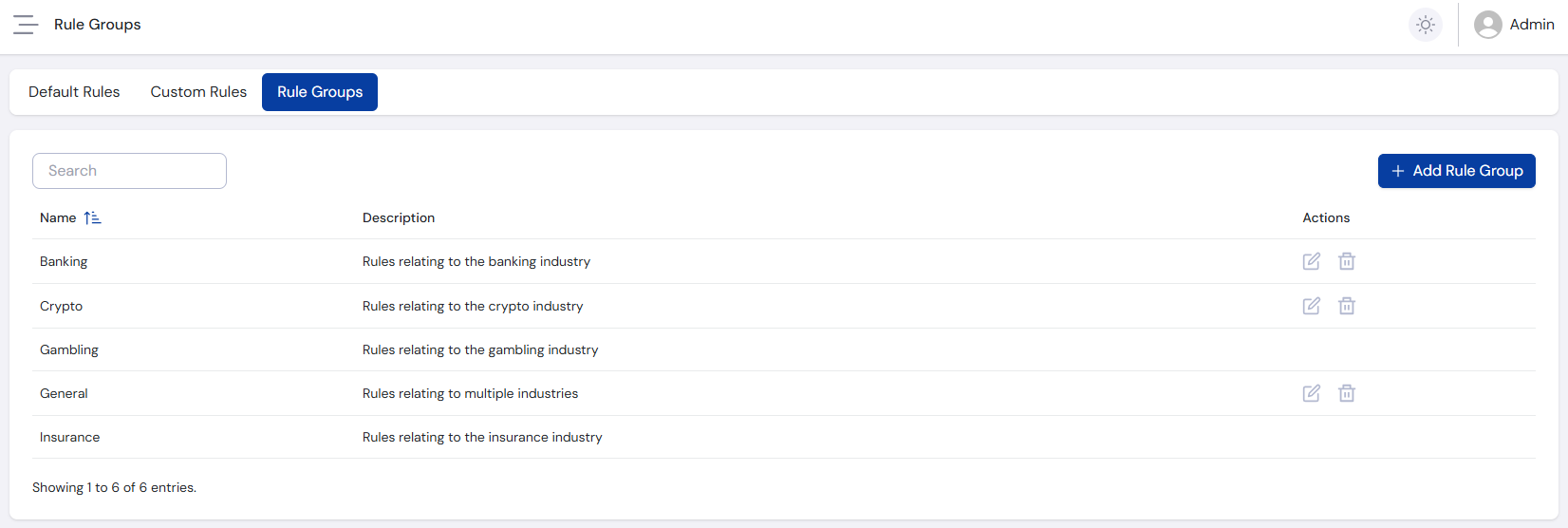
Rule Groups are used to categorise rules for searching and filtering. FraudShield includes a set of default rule groups, which can be Edited and Deleted as required.
You can also create new rule groups by selecting the Add Rule Group button and entering a name and description.
Rule Groups do not affect rule processing or behaviour - they are for organisational purposes only.
Once your rules are configured, see Rule Plans to learn how to group them into an active monitoring plan.