Account Setup
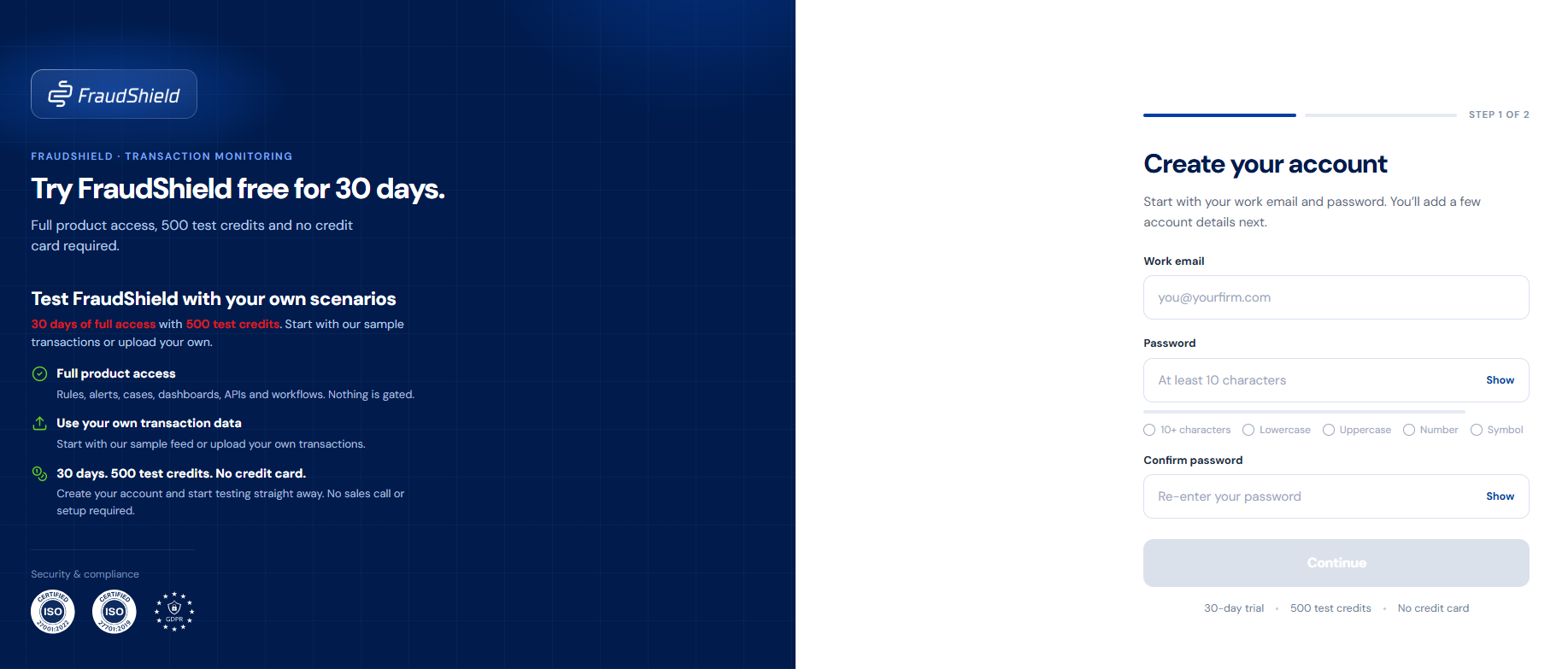
Navigate to the FraudShield Dashboard and select the Sign Up button to create a new account. Signing up is free and includes test credits to get you started.
Organisations
Organisations allow users from the same company to share access to all their FraudShield data. When you create an account, FraudShield automatically creates an organisation and assigns you the Org Owner role. The organisation name defaults to your name. You will be prompted to change this to your company's name on your first sign in, or it can be changed at any time from the Profile page.
Invite Users
You can invite as many users as you need to, all for free. From the Users page, select Invite User and enter their email address and appropriate roles. For more information about user roles, see the Users page.
Invited users don't need an existing FraudShield account - they can create one using the same email address and accept the invitation after logging in.
If an invited user already belongs to another organisation, any data in that organisation does not transfer and is lost when they join yours.
Environments
FraudShield runs two separate environments: Production and Test. FraudShield fully separates all transaction data between them, including Transactions, Customers, Cases, Batch Uploads and Dashboard Statistics. System functions such as Rules, Rule Plans, Audit Logs and Users are shared across both.
The banner at the top of the screen shows which environment you are currently in. Use the environment selector to switch between them at any time.
Using the Dashboard
After logging in, you'll see the Dashboard overview and all available features in the navigation menu. For a full breakdown of the dashboard statistics, see the Dashboard page.
Move on to Setting up Rules to configure your monitoring rules before submitting your first transaction.