Users
The Users page is used to invite other people to your organisation and manage user roles in the system. Inviting users to your organisation means all data can be shared with the relevant stakeholders. FraudShield has no limit or cost for inviting other users.
User Roles
FraudShield is structured around a Role Permission system. One or more roles can be assigned to a user to give access levels appropriate for their business functions.
Access ranges from Owner/ Administrator level roles that have full system capabilities, Manager level roles for read and write access for specific features, and Viewer level roles for read only access.
User roles are shared across the Production and Test environments.
The table below lists all roles and system permissions:
| Permission | Org Owner | Org Admin | Business Manager | Business Viewer | Rules Manager | Rules Viewer | Billing Manager | Billing Viewer | User Manager |
|---|---|---|---|---|---|---|---|---|---|
| View Dashboard | ✓ | ✓ | ✓ | ✓ | |||||
| View Cases | ✓ | ✓ | ✓ | ✓ | |||||
| Edit Cases | ✓ | ✓ | ✓ | ||||||
| View Transactions | ✓ | ✓ | ✓ | ✓ | |||||
| View/Download Regulatory Reports | ✓ | ✓ | ✓ | ✓ | |||||
| Create Regulatory Reports | ✓ | ✓ | ✓ | ||||||
| View Batch Files | ✓ | ✓ | ✓ | ✓ | |||||
| Submit Batch Files | ✓ | ✓ | ✓ | ||||||
| Submit API Requests | ✓ | ✓ | ✓ | ||||||
| View Field Mappings | ✓ | ✓ | ✓ | ✓ | |||||
| Edit Field Mappings | ✓ | ✓ | ✓ | ||||||
| View Customers | ✓ | ✓ | ✓ | ✓ | |||||
| View Rules | ✓ | ✓ | ✓ | ✓ | |||||
| Edit Rules | ✓ | ✓ | ✓ | ||||||
| View Rule Plans | ✓ | ✓ | ✓ | ✓ | |||||
| Edit Rule Plans | ✓ | ✓ | ✓ | ||||||
| View AI Models | ✓ | ✓ | ✓ | ✓ | |||||
| Train AI Models | ✓ | ✓ | ✓ | ||||||
| Enable or Disable AI Models | ✓ | ✓ | ✓ | ||||||
| View Reference Lists | ✓ | ✓ | ✓ | ✓ | |||||
| Edit Reference Lists | ✓ | ✓ | ✓ | ||||||
| View Regulatory Report Templates | ✓ | ✓ | ✓ | ✓ | |||||
| Edit Regulatory Report Templates | ✓ | ✓ | ✓ | ||||||
| View Users | ✓ | ✓ | ✓ # | ✓ # | ✓ | ||||
| Invite Users/Edit User Roles | ✓ | ✓ | ✓ | ||||||
| View Audit Logs | ✓ | ✓ | ✓ | ✓ | |||||
| View Personal API Keys | ✓ | ✓ | ✓ | ||||||
| Edit Personal API Keys | ✓ | ✓ | ✓ | ||||||
| View All API Keys | ✓ | ✓ | |||||||
| Edit All API Keys | ✓ | ✓ | |||||||
| View Billing Info | ✓ | ✓ | ✓ | ✓ | |||||
| Manage Billing Credits | ✓ | ✓ | ✓ | ||||||
| View Profile Info | ✓ | ✓ | ✓ | ✓ | ✓ | ✓ | ✓ | ✓ | ✓ |
| Edit Profile Info | ✓ | ✓ | ✓ | ✓ | ✓ | ✓ | ✓ | ✓ | ✓ |
| Edit Organisation Info | ✓ | ||||||||
| View Documentation | ✓ | ✓ | ✓ | ✓ | ✓ | ✓ | ✓ | ✓ | ✓ |
| Submit Support Tickets | ✓ | ✓ | ✓ | ✓ | ✓ | ✓ | ✓ | ✓ | ✓ |
- # - These user roles have limited access to usernames for case assignment purposes.
- AI risk scores - AI risk scores on cases and transactions follow the View Cases and View Transactions permissions, so anyone who can open those pages can see them.
- Auto Case Creation - Only the Org Owner, Org Admin and Business Manager roles can change the Auto Case Creation Based on AI Risk Score settings.
User List
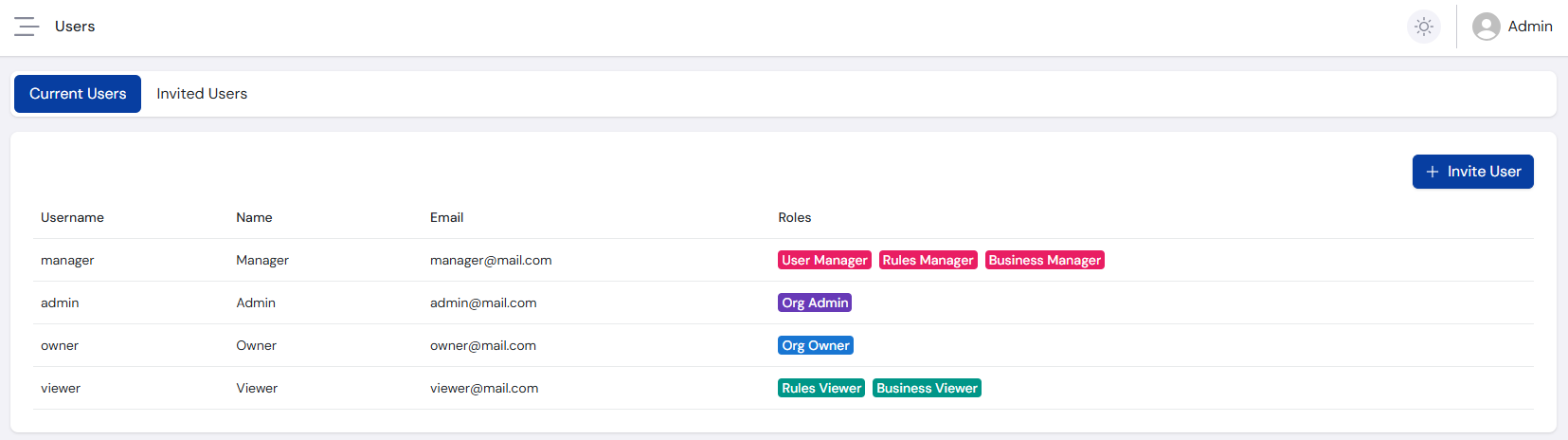
The Users page lists all Current Users of the organisation, as well as the status of Invited Users.
Invite User
Selecting Invite User displays a prompt to enter the email address of the intended recipient and the required user roles. Multiple roles can be selected, except when the Admin role is specified, as it inherits all system roles.
The new user receives an email notifying them of the invitation and prompting them to create an account or log in to FraudShield. They then need to navigate to their profile page and accept the invitation before they can see your organisation's information.
Edit User
Selecting a user from the Current Users list opens their profile to edit their roles.
Any user who has their roles updated must re-login before the roles take effect.
To manage your own profile and notification settings, see the Profile page.