Regulatory Reports
The Regulatory Reports page is used to create and edit Regulatory Report Templates that are used to generate a regulatory report from existing case and transaction information.
These templates can be set up to pre-fill information from the case itself, pre-defined fields, or allow freeform text editing of custom fields. This reduces manual data entry and ensures exports are ready for submission to regulators.
For information on generating a regulatory report, see the Cases - Regulatory Reports page.
Search Filters
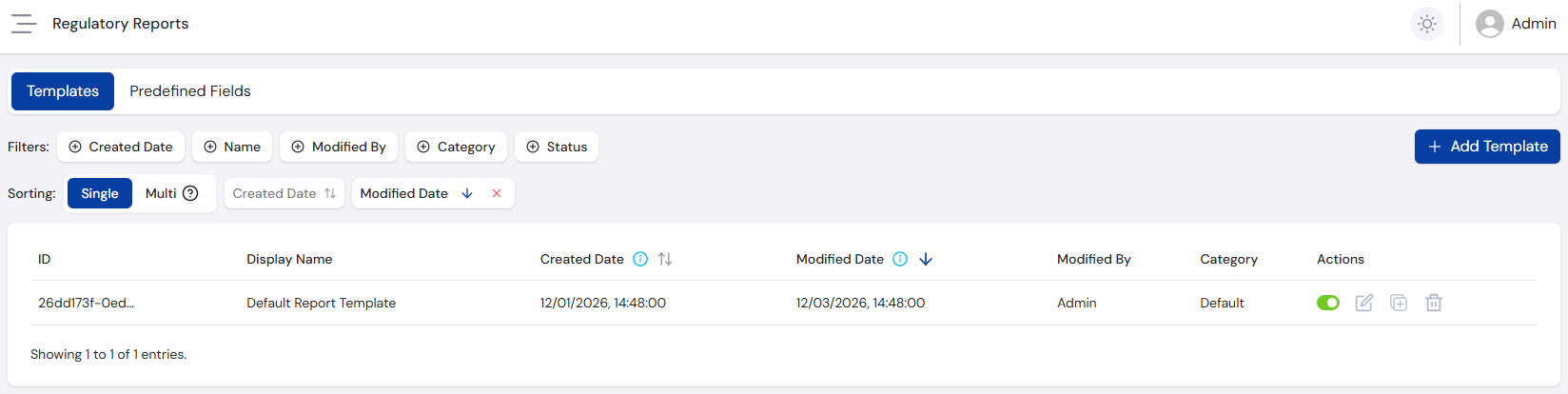
Use the filters below to find specific regulatory report templates. Each field is type-specific to help ensure the correct format.
- The Name field supports partial matching, useful for finding specific report templates.
- Use the Status filter to quickly show only enabled templates.
Included Filters
| Filter | Type | Description |
|---|---|---|
| Created Date | Date Picker | Filters reports by the selected created date range. |
| Name | Text | Filters by report name, partial matching supported. |
| Modified By | Multi Select | Filters templates based on the user who last modified them. |
| Category | Single Select | Category type for the template (Default or Custom). |
| Status | Single Select | Status of the template (Enabled or Disabled). |
Regulatory Reports Table
After applying search filters, the results appear in a paginated table:
Regulatory Reports Columns
| Column | Description |
|---|---|
| Template ID | System-generated ID for the template. |
| Display Name | User-defined name. |
| Created Date | Date and time the record was created. |
| Modified Date | Date and time the record was last modified. |
| Modified By | User who last modified the record. |
| Category | Category of the template: Default are system-generated, Custom are user-generated. |
| Status | Current status of the record. |
| Actions | Available actions for the template. See Manage Regulatory Report Templates below. |
Manage Regulatory Report Templates
FraudShield includes a pre-defined regulatory report template that can be used as a learning guide or basis for creating other templates. It uses a combination of the different template field types and shows how fields can be grouped together. The template is based on the widely used GoAML format, which may differ per region or industry.
Each template has an Enabled status, which can be switched between on and off. Enabled templates appear as options when generating a regulatory report.
The templates can be managed through four actions:
- Add - Create a new template (see below).
- Edit - Modify an existing template.
- Duplicate - Copy a template to use as a starting point for a new one.
- Delete - Permanently remove a template.
Add Template
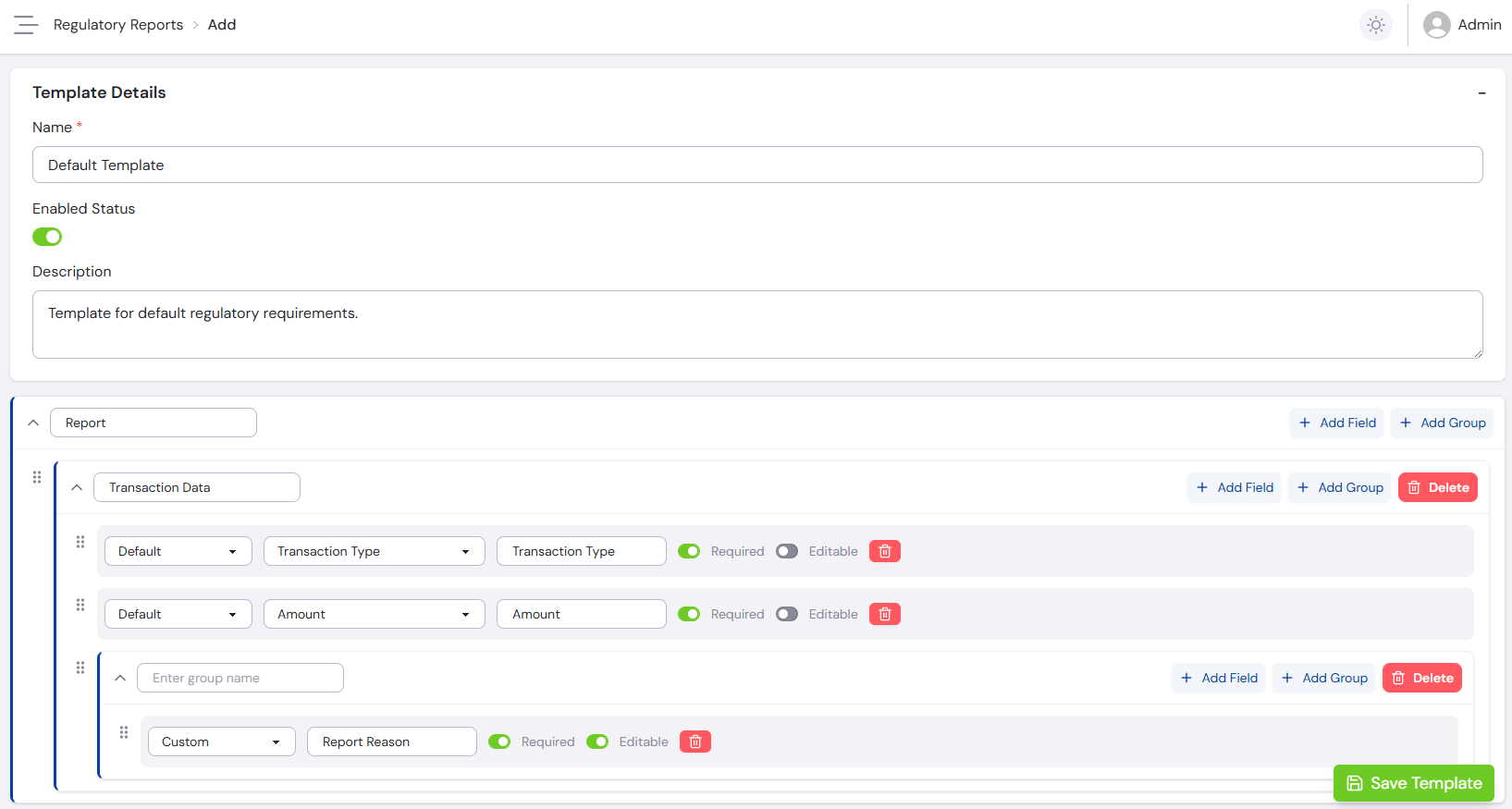
Additional report templates can be created for any type of regulatory function you need to perform. Select the Add Template button to open the new template page.
In the first section, enter a Name and whether the template should be enabled or disabled, which determines whether it is available for generating reports. You can also enter an optional Description to provide more information about the template's purpose.
The second section is where the template itself is defined. The template is structured around grouping fields together to achieve the required format when exporting the report. Reports can be exported in three formats:
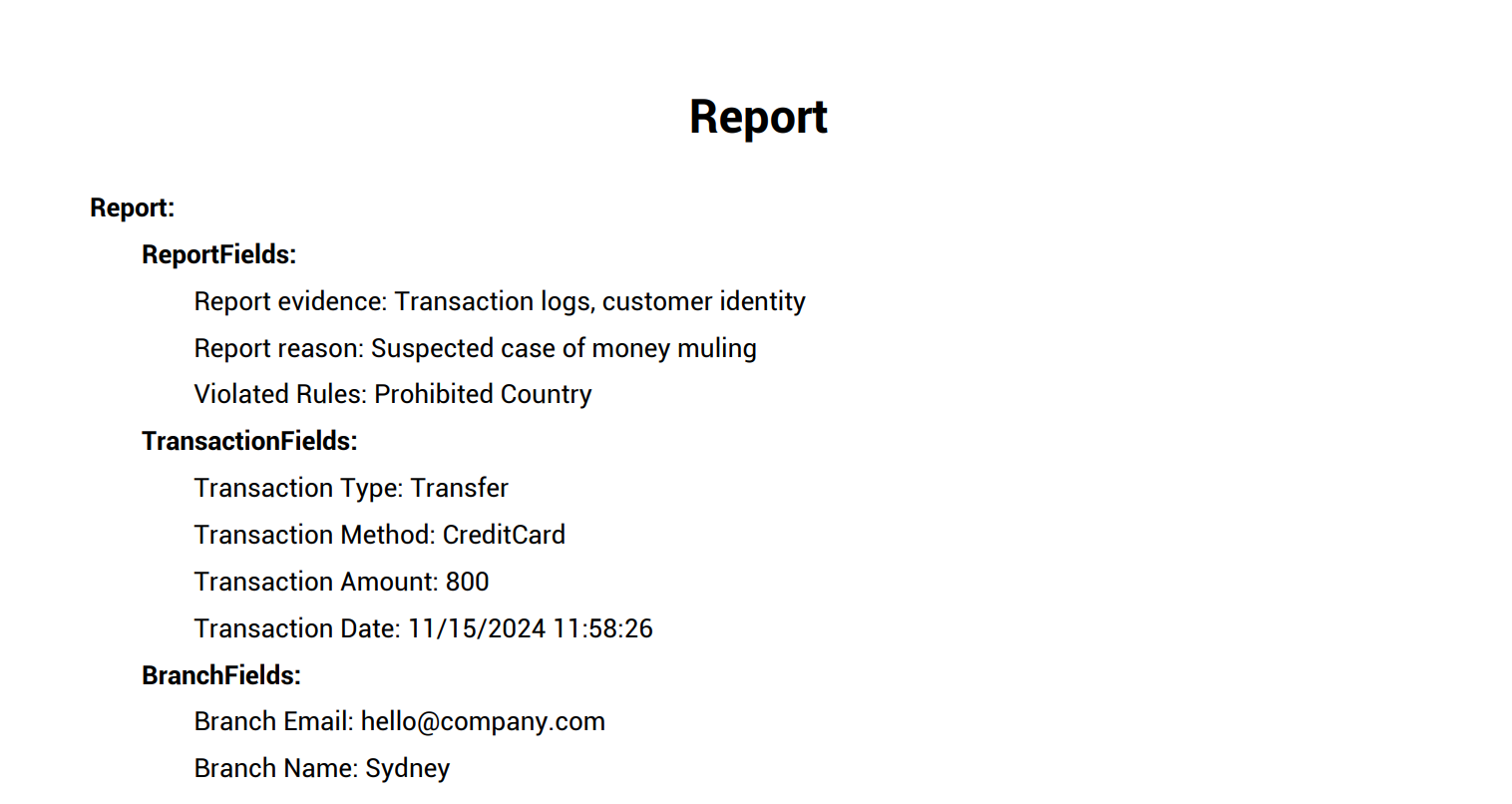
- PDF - Downloads the report in PDF format, with fields grouped as document headings and sub-headings.
- CSV - Downloads the report in CSV format, with fields grouped using their headings then sub-headings, and headings added as a prefix to the field name.
- XML - Downloads the report in XML format, with grouping defining how the final XML document is structured. Each top-level group acts as parent to its subgroups and fields.
Once the grouping structure is defined, add fields. There are three types of field:
- Default - Fields that FraudShield natively supports and can be provided to the system during transaction submission. These fields are automatically pre-filled when generating the report.
- E.g. -
TransactionType,TransactionMethod,AmountandTransactionDate.
- E.g. -
- Custom - Fields that FraudShield doesn't natively support, are stored in another system, or are a freeform text entry. These fields are not automatically pre-filled, but allow you to enter the required information when generating the report.
- E.g. - "Report reason", "Report evidence".
- Predefined - Fields that FraudShield doesn't natively support, but can be saved and then automatically pre-filled when generating the final report. These are generally static values that save time by pre-filling automatically.
- E.g. -
BranchName,BranchEmail.
- E.g. -
All fields have a Label Name, which is what will be presented as the label on the report generation screen. It defaults to the field name if available, but can be updated - e.g. Amount could be updated to show "Transaction Amount".
Each field has a Required status - when enabled, the field requires a value before the report can be saved. Fields also have an Editable status, controlling whether pre-filled information can be edited. Custom fields must be editable.
Once you have finished adding the groups and fields, select Save Template.
Edit Template
The Edit Template button opens the same screen as Add Template, allowing you to make any required changes.
Editing a template does not affect previously generated reports - they can still be downloaded in their original format.
Duplicate Template
The Duplicate Template button opens the same screen as Edit Template, with (Copy) appended to the name. Changes are saved to a new template, leaving the original unchanged.
Delete Template
Select Delete Template and confirm to permanently delete the template.
Deleting a template does not affect previously generated reports - they can still be downloaded in their original format.
Example Template
Using the field examples above, the following example template consists of three groups:
TransactionFieldscomprised of Default fields to be pre-filled from transaction data.ReportFieldscomprised of Custom fields that are freeform in nature as well as Default fields comprising case information.BranchFieldscomprised of Predefined fields that are commonly used for a report and can be pre-filled.
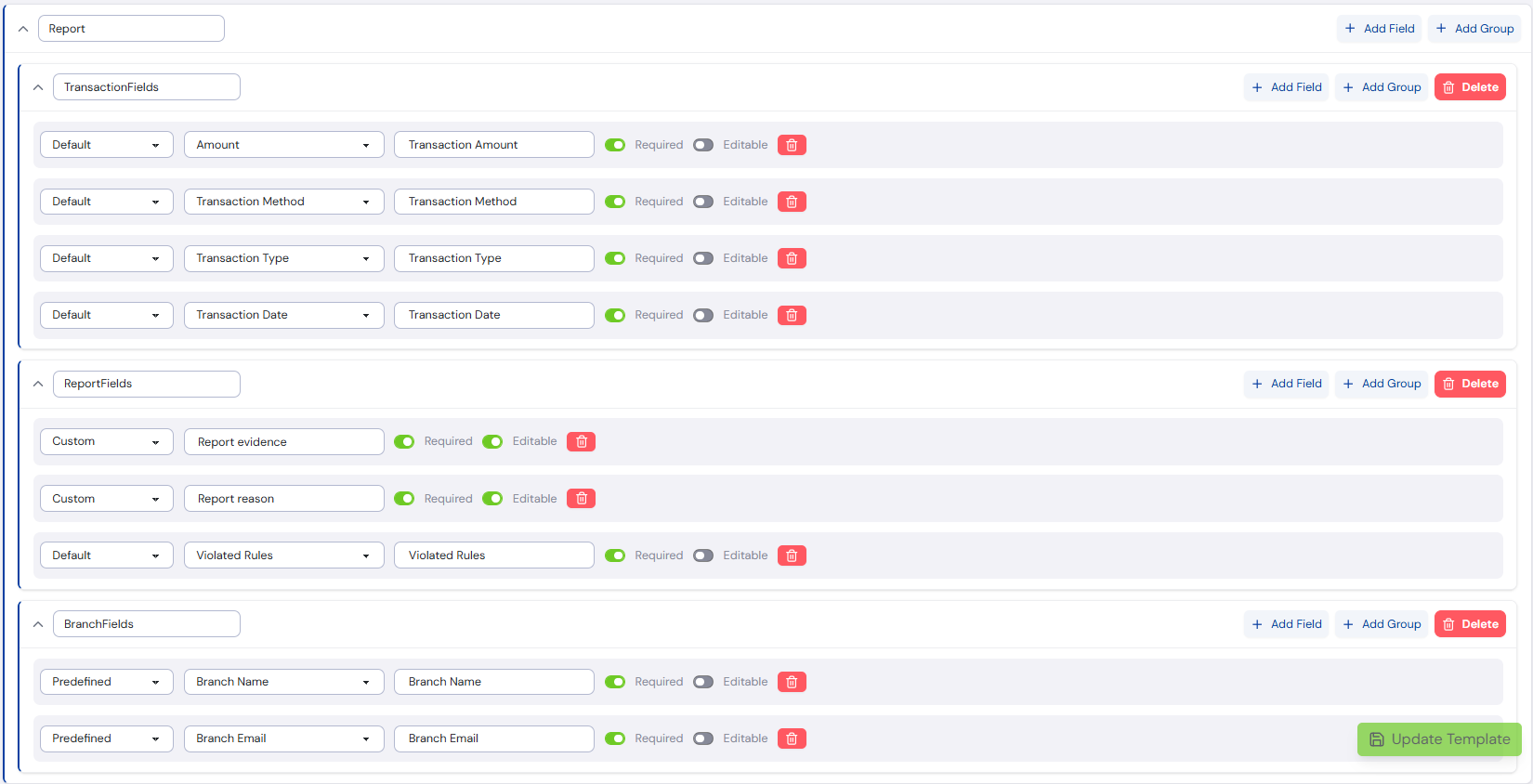
The following changes were made from system default settings to better match the demo report requirements:
- The Amount field had its label name updated to "Transaction Amount".
- All fields were set to Required.
- The
TransactionFieldsandBranchFieldswere all set to be non-editable, so that information coming straight from the system cannot be changed.
When generating a report using this template, the report generation screen appears as follows:
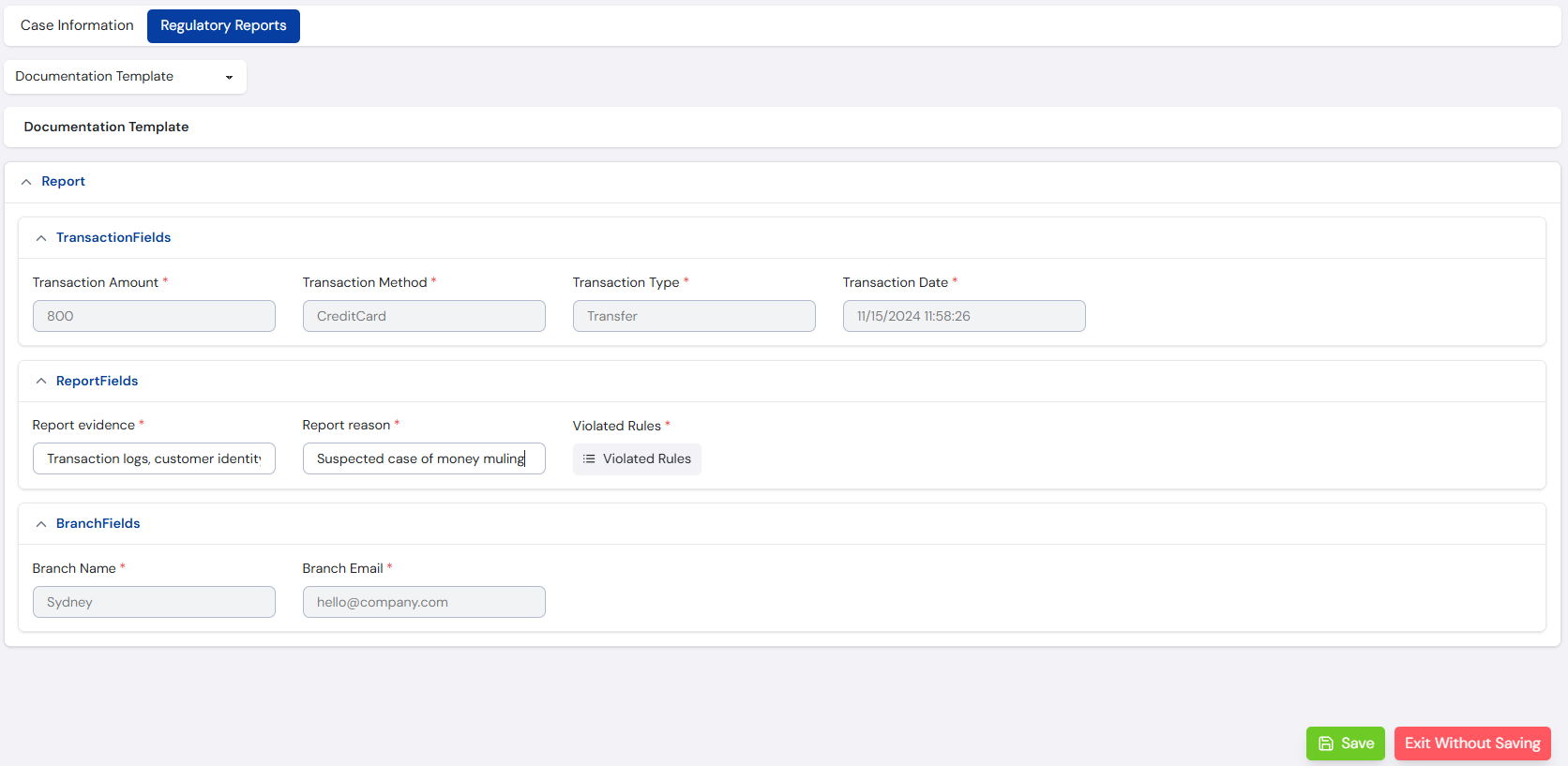
When exporting the report in each available format, the output looks like:
PDF
XML
<?xml version="1.0" encoding="utf-8"?>
<Report>
  <ReportFields>
    <Reportevidence>Transaction logs, customer identity</Reportevidence>
    <Reportreason>Suspected case of money muling</Reportreason>
    <ViolatedRules>Prohibited Country</ViolatedRules>
  </ReportFields>
  <TransactionFields>
    <TransactionType>Transfer</TransactionType>
    <TransactionMethod>CreditCard</TransactionMethod>
    <TransactionAmount>800</TransactionAmount>
    <TransactionDate>11/15/2024 11:58:26</TransactionDate>
  </TransactionFields>
  <BranchFields>
    <BranchEmail>hello@company.com</BranchEmail>
    <BranchName>Sydney</BranchName>
  </BranchFields>
</Report>
CSV

For information on generating a report from a case, see the Cases page.