Billing
The Billing page is used to view and purchase FraudShield credits.
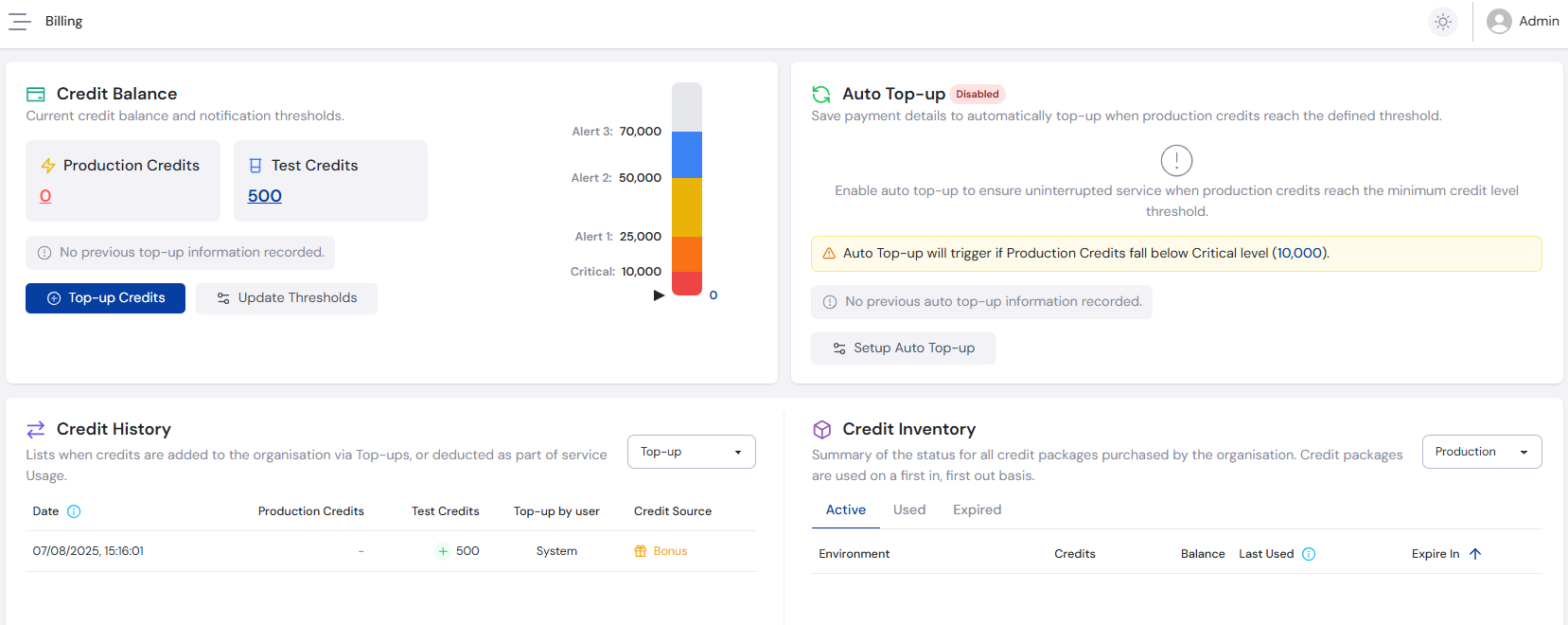
Credit Balance
This section shows the available amount of credits for both the Production and Test environments.
Selecting Top-up Credits displays all available credit packages and opens an online checkout process.
Selecting Update Thresholds displays the organisation's production credit threshold limits. Setting appropriate values for Alert 1, Alert 2 and Alert 3 ensures users receive email notifications when production credits reach these levels. The Critical (Minimum Credit Level) sets the threshold at which the system triggers Auto Top-Up, and also sends an email notification.
Auto Top-up
The Auto Top-up function allows an organisation to save payment details so that production credits are automatically renewed when they run low, ensuring no interruption in service.
Auto Top-up can be set up from this section by selecting a package and saving card details. Plan details are then displayed and can be cancelled at any time.
Credit History
This section shows both Top-up and Usage events.
Top-up is when credits are added to the organisation in the following ways:
- Purchased - One-off top-up of credits purchased by the user.
- Auto Top-up - System-initiated top-up when the organisation's credits fall below the critical level.
- Bonus - Credits provided by the Nexiant team from either an offline purchase or other reason.
Usage shows all credit usage by the organisation, separated by environment and grouped in two-minute intervals.
Credit Inventory
This section shows all credit packages ever added to the organisation, as well as their status.
Packages are separated by environment and can have the following status:
- Active - Unused credits still remaining in the package, and still within the expiry date.
- Used - All credits in the package were used before the expiry date.
- Expired - Package expired before all credits could be used.
For more information on purchasing credits and setting up auto top-up, see the Going Live guide.