Rule Plans
The Rule Plans page is used to identify and group rules together in a plan to be used for monitoring.
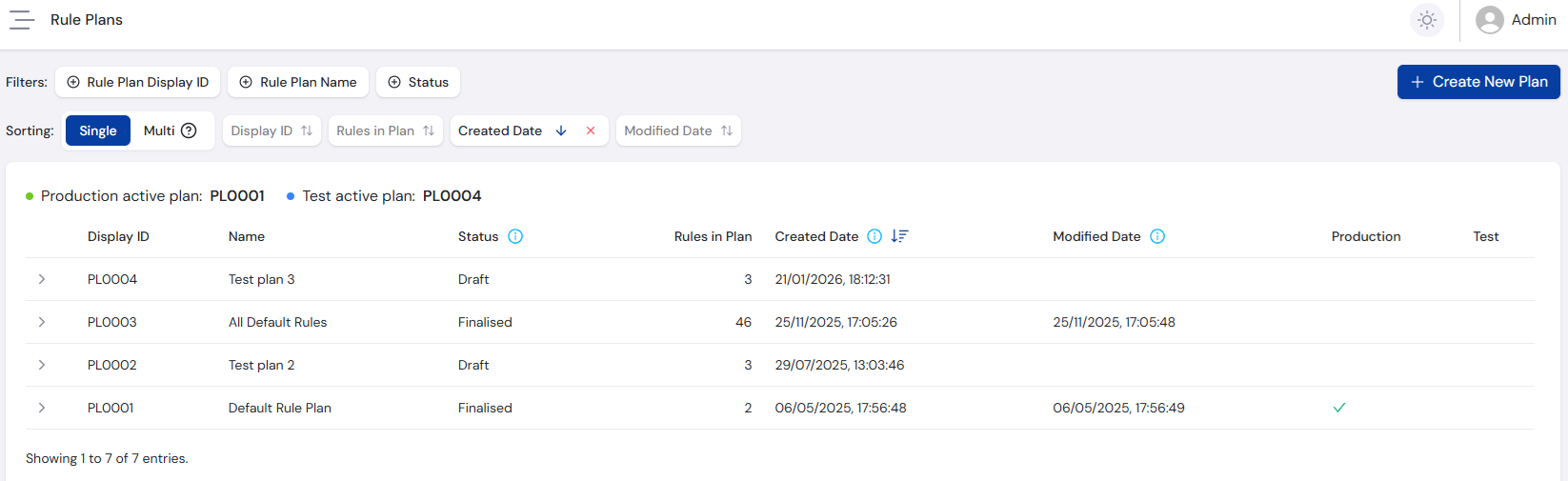
Default Rule Plan
A Default Rule Plan is automatically created when your account is first set up and includes a curated set of 14 default rules. It is also set as the Active Rule Plan for both the Production and Test environments, allowing you to start submitting transactions immediately.
While the default rules cover many scenarios relevant to organisations worldwide, not all rules will be applicable and some will need to be changed according to local or industry requirements. Create your own rules and rule plans before moving into production.
Create New Plan
Selecting Create New Plan opens the Add Plan page. Start by adding a Rule Plan Name, then optionally a Description for more details on the rule plan purpose.
Then select the rules you want to add to the plan. Use the following filters to find the rules you need.
Each rule plan can have a maximum of 50 rules.
- The Name or ID field supports partial matching, useful for finding rules with specific keywords.
- If you've set up Rule Groups, use them to filter quickly by group.
- Use the Rule Category filter to switch between Default and Custom rules.
Included Filters
| Filter | Type | Description |
|---|---|---|
| Name or ID | Text Search | Search rules by either their Name or ID fields, partial matching available. |
| Risk Level | Dropdown | Filter rules based on their risk level: Urgent, High, Medium or Low. |
| Min Risk Score | Number | Lower range for rule risk score. |
| Max Risk Score | Number | Upper range for rule risk score. |
| Rule Group | Dropdown | Filter rules based on their Rule Group. |
| Rule Category | Dropdown | Filter rules based on whether they are a Default or Custom rule. |
Once you have selected your rules, save the plan. Two save options are available:
- Save as Draft - The plan remains editable and can be deleted.
- Save as Finalised - The plan is locked. A plan must contain at least one rule to be finalised.
Finalising a rule plan cannot be undone. A Finalised plan can never be edited or deleted.
Select Active Plan
The Active Plan for each environment determines which rules are processed when a transaction is submitted to that environment. The current active plans are displayed at the top of the rule plans table.
To change an Active Plan, select the row of the plan and then either Activate in Production or Activate in Test. A warning dialogue appears to confirm the correct rule plan is being activated, as this affects all users of the system.
A plan saved with Save as Draft enters Draft status. While in draft, the rule plan can be freely edited and deleted if required.
A plan moves to Finalised status when saved with Save as Finalised, or automatically when set as an Active Plan.
Finalised rule plans can be given their own case risk level bands. See Risk Level Assignment for details.
Rule Change Impact on Plans
Naturally over the course of using the system, individual Rules will be updated as requirements change.
Changing a rule does not impact any plan in Finalised status. Rules are locked to that rule plan permanently, meaning you can update rules freely without disrupting ongoing processing.
However, changes to a rule are reflected in any plan still in Draft status. Before activating a Draft plan, you are prompted to Select Changes to choose whether to use the older or newer version of the rule.
Rule Plan Actions
Selecting a rule plan expands its row, with the following actions available depending on the Rule Plan Status.
Duplicate Finalised Draft
Copies the existing rule plan as a new plan. All included rules are copied, with (Copy) appended to the rule plan name.
View Finalised Draft
Shows all included rules in the plan.
If a rule plan is in Finalised status, an additional Flagged % column appears, showing how often a rule has been flagged compared to the number of times it has been evaluated. Hover over the percentage to see the raw values.
This is useful to determine the performance of a particular rule. A very low or zero percentage could indicate that there is a logic issue with the rule causing it not to flag correctly. A very high or 100% value could indicate that the rule is raising false positives.
Edit Draft
Takes you to the editing page to add and remove rules from a Draft plan. Removing a rule from Rules in Plan adds it back to the All Rules list. Selecting a rule from the All Rules list adds it to the Rules being added to Plan list.
Delete Draft
Asks you to confirm if you want to permanently delete a plan in Draft status.
Select Changes Draft
Appears only for a Draft plan where one or more rules have changed since the draft was last edited.
For each rule that has changed, you are prompted to See Latest Changes. Three options are available for viewing the rule details:
- Current Rule - Shows the rule that was saved in the original draft.
- Updated Rule - Shows the rule in its current state.
- Show Difference - Shows a summary of the differences between the PseudoSQL of the two rules for easy comparison.
When you have identified which version of the rule you want to keep, you can either Accept Changes to save the newer rule, or Reject Changes to keep the older rule.
Train Model Finalised
Starts training an AI model on the plan, after you confirm it in the Training Confirmation dialog. Only shown to roles that can train AI models. See Training a Model below.
Select Trained Models Finalised
Opens the Trained Models dialog, where you choose which trained model is enabled for each environment. Without permission to enable models, this action appears as View Trained Models and opens the dialog read-only. See Trained Models below.
For information on building individual rules, see the Rules page or the Rule Builder guide.
AI Models
A Finalised rule plan can be used to train AI models, which give each processed transaction an AI risk score alongside the results of the plan's rules. For what the score means, see How AI Risk Scoring Works. Every training pipeline in your organisation is also listed on the AI Models page.
Draft plans have no AI actions. Finalise a plan with Save as Finalised, or activate it, before training a model on it.
AI Model Indicators
The rule plans table shows which plans have a model enabled:
- Sparkle marker - A sparkle before the Display ID shows that the plan has a model enabled for an environment - lime for Production and blue for Test. Hover over it to see "Production AI model active" or "Test AI model active", followed by the model's accuracy.
- Active plan header - The Production active plan: and Test active plan: rows at the top of the table show an AI Model · x% accuracy pill when that plan has a model enabled for the environment.
Training a Model
Expanding a Finalised plan shows an Active Pipelines panel while any of its training pipelines are in progress, with the same steps and statuses as the AI Models page.
Select Train Model to open the Training Confirmation dialog, which shows the Rule Plan ID and Rule Plan Name of the plan being trained. Select Start Training to begin, or Cancel to close the dialog. You can keep using the application while the model trains. Your organisation trains one model at a time, so a new pipeline waits as Pending while another is in progress - see Pipeline Statuses.
Trained Models
Select Select Trained Models to open the Trained Models dialog for the plan. It lists every completed training pipeline for the plan, 10 per page, or shows "No trained models available for this rule plan." if none has completed yet.
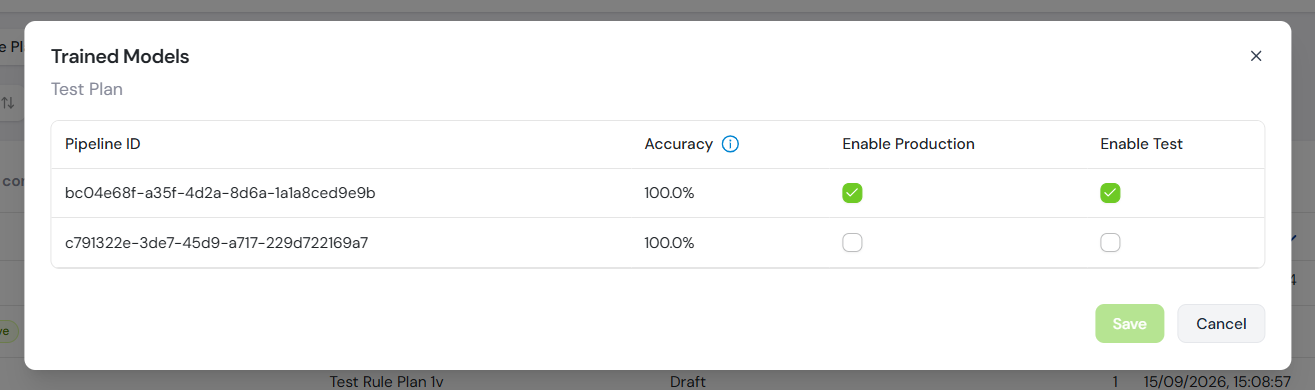
Trained Models Columns
| Column | Description |
|---|---|
| Pipeline ID | Unique identifier for the training pipeline that produced the model. Select the copy icon to copy it. |
| Accuracy | How well the model distinguishes risky transactions from safe ones, measured on test data held back from training. Shows - when no accuracy figure is available. |
| Enable Production | Enables the model for the Production environment. |
| Enable Test | Enables the model for the Test environment. |
Each environment can have one model enabled per plan. Tick Enable Production or Enable Test against a model to enable it, or untick the enabled model to disable AI scoring for that environment, then select Save. Select Cancel to discard your changes.
If you do not have permission to enable models, the dialog opens from View Trained Models in read-only mode. It shows Production and Test columns instead, with a sparkle marking the enabled model (Active in Production or Active in Test) and - against the others, and a Close button.
A model only scores transactions while its plan is the Active Plan for that environment. Enabling a model on a plan that is not active has no effect until you activate the plan.
Confirming Model Changes
If the plan is not the active plan in either environment, Save applies your changes straight away. Otherwise, a confirmation dialog opens with a title describing the change, such as Enable Production Model, Switch Test Model, Disable Production Model or Update Models.
The dialog lists the changes for each environment, with + against the model being enabled and - against the model being removed. Type Confirm to enable the Confirm button, then select it to apply the changes. FraudShield confirms the update with an "Active model updated" message.
When you replace the model in an environment where the plan is active, batches already in progress keep using the model assigned to them. The confirmation dialog notes this with "Ongoing batches will continue using the currently assigned model in affected environments."