Rule Builder
The Rule Builder is the primary interface for creating and editing rules in FraudShield. This guide covers every field and control in the Rule Builder UI. If you are not yet familiar with how rules are structured, read the What is a Rule? guide first.
Generate with AI
The Generate with AI feature allows you to create a new rule or update an existing one by describing the intended behaviour in plain language. FraudShield interprets the description and automatically populates the Rule Builder fields, which can then be reviewed and adjusted before saving.
Usage limits apply to the Generate with AI feature.
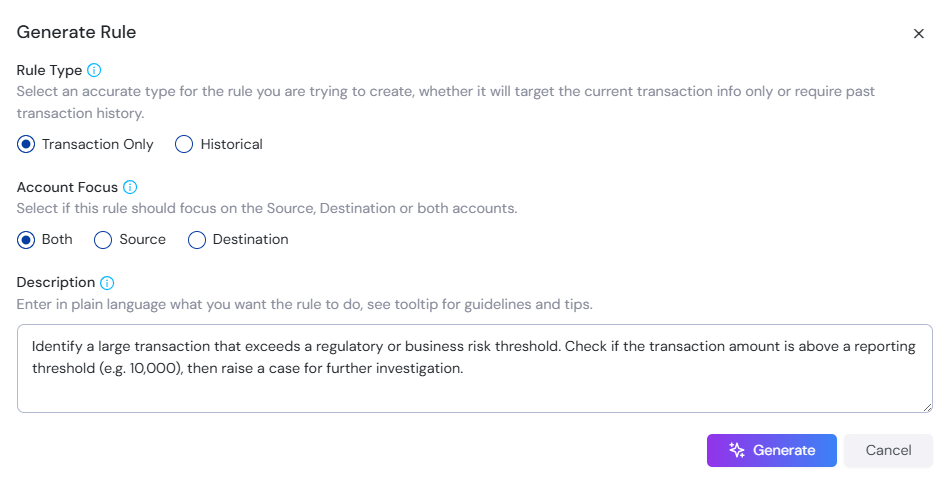
Select the Generate with AI button in the bottom-right corner of the Rule Builder page to open the Generate Rule dialog.
Generate Rule Fields
| Field | Description |
|---|---|
| Rule Type | Select whether the rule should evaluate the current transaction only (Transaction Only) or include historical data (Historical). |
| Account Focus | Select which accounts the rule should focus on: Both, Source, or Destination. |
| Description | Describe the rule in plain language. Be as specific as possible about the conditions you want to detect — for example, "Flag transactions over $10,000 from a destination account that has received more than 5 transfers in the past 7 days." |
Once the fields are complete, select Generate to apply the suggested configuration to the Rule Builder. All fields should be reviewed and confirmed before saving, as the output may require adjustment to match your specific requirements.
Rules that have been created or edited using Generate with AI are flagged in the rules list to indicate AI involvement.
Rule Details
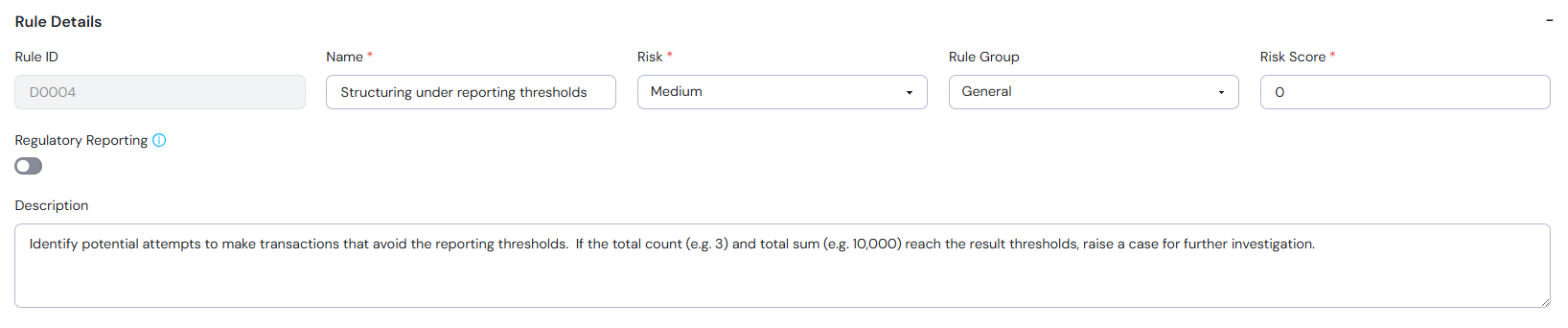
The Rule Details section captures the top-level metadata for the rule.
Rule Details
| Field | Required | Description |
|---|---|---|
| Rule ID | Auto-generated | A unique identifier assigned by the system. This field is read-only and cannot be edited. |
| Name | Yes | A short, descriptive name for the rule. This will appear in the rules list and on any cases the rule generates. |
| Risk Level | Yes | The risk level assigned to this rule: Low, Medium, High, Urgent. This is used to prioritise cases in the investigation queue. |
| Rule Group | Yes | A category used to organise rules on the UI (e.g. General, Banking, Insurance). Rule Groups can be managed in Settings. |
| Risk Score | Yes | A numeric value representing the severity of the rule. This score contributes to the overall risk profile when a case is raised. |
| Regulatory Reporting | No | When enabled, any case raised by this rule will be flagged for regulatory reporting. Toggle on if the rule relates to a compliance or reporting obligation. |
| Description | No | A plain-language explanation of what the rule detects and what action it is intended to trigger. This is displayed to investigators when reviewing a case. |
Rule Type
The Rule Type determines how the rule processes transaction data.
Rule Type Options
| Option | Description |
|---|---|
| Transaction Only | The rule evaluates the incoming transaction in isolation. No historical data is retrieved. |
| Historical | The rule evaluates the incoming transaction alongside historical transaction data for the same account. Selecting this mode enables the Queries and Result sections. |
Triggers
The Triggers section defines the conditions an incoming transaction must meet for the rule to activate. If any condition in the trigger is not satisfied, the rule will not proceed.
Account Focus
The Account Focus setting controls which roles should be flagged if a case is created.
It also determines which account field categories are offered when building conditions. Selecting Both offers the Both Accounts Fields category, while selecting Source or Destination offers the separate Source Account Fields and Destination Account Fields categories instead. The available fields update immediately when the focus changes, and the Account's Role setting on Queries behaves the same way.
Building Trigger Conditions
Select + Rule to add a condition row, or + Group to add a nested group of conditions. Each condition row is made up of four parts:
- Attribute - The transaction field to evaluate (e.g. Transaction Type, Transaction Amount).
- Operator - The comparison to apply (i.e.
=,!=,>,<,>=,<=,is null,is not null). The available operators will depend on the field chosen. - Comparison - Select whether you want to compare against a
Value(e.g. number, string) or anotherField(for direct comparison). - Value - The value or values to compare against. Multiple values can be added to a single condition and are treated as an
ORmatch - the condition is satisfied if the field matches any of the listed values. Date values must use a year of 1900 or later.
To remove a condition, select the X icon on the right side of the row. To remove a value from a multi-value condition, select the X next to the individual value tag.
To copy a rule line, select the Clone icon on the right side of the row.
The system displays a live PseudoSQL expression below the condition builder, reflecting the current trigger logic:
#{account} is {dest} AND #{trans_type} = {ATMDeposit,Payment,Deposit,Transfer,AssetSale}
Some fields support matching against a pre-defined Reference List - for example, checking whether a country code appears on your Country Risk list, or whether an IP address is on your IP Blacklist. When building conditions, these lists will appear as selectable value options for supported fields.
Reference lists are managed separately from the Rule Builder. See Reference Lists for full details on creating and managing them.

Derived Fields
Some fields are derived internally by FraudShield rather than provided in the transaction submission. The following country code fields are extracted automatically from the corresponding IP address fields and are available for use in rule conditions:
trans_ip_country_code,s.trans_ip_country_code,d.trans_ip_country_code- Country code extracted from the transaction IP address.acct_open_ip_country_code,s.acct_open_ip_country_code,d.acct_open_ip_country_code- Country code extracted from the account opening IP address.
Raw IP address fields cannot be compared against country code reference lists. Use the derived country code fields for country-based conditions instead.
Queries (Historical rules only)
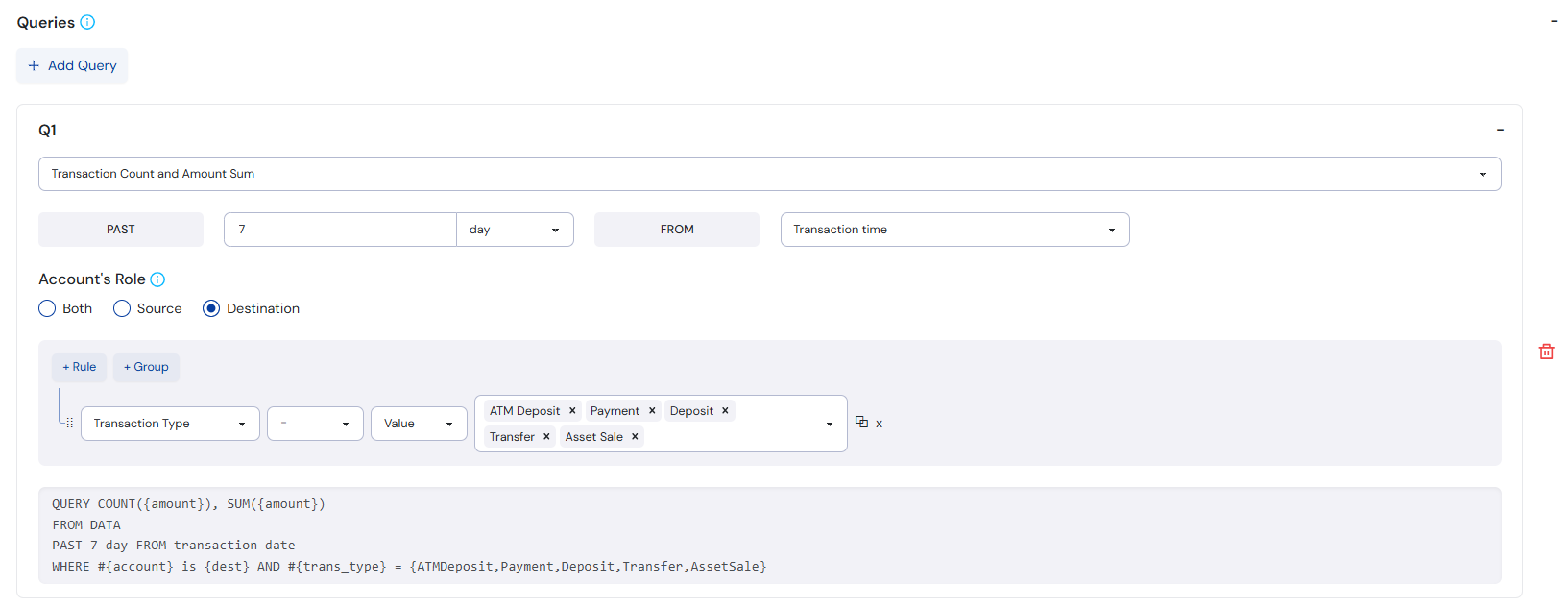
The Queries section defines what historical data to retrieve for evaluation. FraudShield assigns each query an auto-incremented label (e.g. Q1, Q2). Each query returns one or more output variables that can be referenced in the Result section.
Select + Add Query to add a new query block.
Query Configuration
Query Fields
| Field | Description |
|---|---|
| Query Type | Select a pre-built query template that defines what data to aggregate: Transaction Count, Amount Sum or Transaction Count and Amount Sum. |
| Time Window | Set the lookback period by entering a number and selecting a unit (e.g. 7 day). The direction is always PAST ... FROM the reference point. |
| Reference Point | The timestamp field used as the anchor for the time window: Transaction time or Custom (enter the desired amount of time to go back before the transaction date). |
| Account's Role | Specifies the role the account played in the historical transactions being searched. This works in combination with the Account Focus setting - for example, if Account Focus is set to Source and Account's Role is set to Destination, the query will search for all past transactions where the current transaction's source account appeared as the destination. If Both is set in either field, all permutations will be checked. |
Query Conditions
Each query has its own condition builder, which works identically to the Triggers condition builder - including support for Reference Lists where applicable. Use this to filter which historical transactions are included in the query results. For example, you might filter by specific transaction types to exclude irrelevant activity.
The system generates a PseudoSQL expression summarising the full query:
QUERY COUNT({amount}), SUM({amount})
FROM DATA
PAST 7 day FROM transaction date
WHERE #{account} is {dest} AND #{trans_type} = {ATMDeposit,Payment,Deposit,Transfer,AssetSale}
Query Output Variables
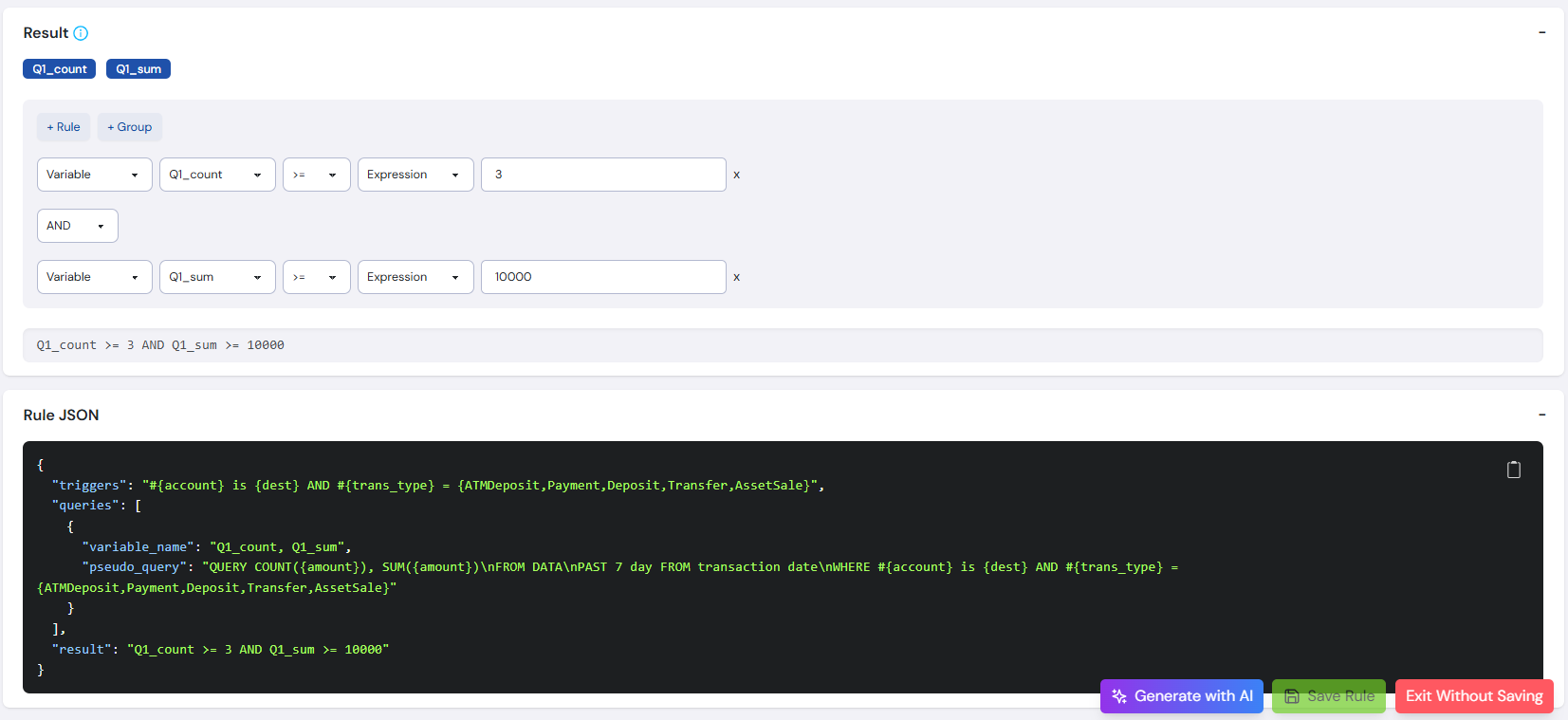
The variables returned by a query are displayed as labelled tags at the top of the Result section (e.g. Q1_count, Q1_sum). The available variables depend on the Query Type selected.
You can add multiple queries to a single rule. Each query will produce its own set of output variables, all of which are available in the Result section.
Result (Historical rules only)
The Result section defines the conditions that must be met by the query output to raise a case. Available output variables from your queries are displayed as selectable tags at the top of the section.
Building Result Conditions
Result conditions follow the same structure as Trigger conditions, with one difference - the values being compared are query output variables and expressions rather than transaction attributes.
Each side of a condition row can be set independently to either type:
Condition Types
| Type | Description |
|---|---|
| Variable | A query output variable (e.g. Q1_count, Q1_sum). The available variables are shown as selectable tags at the top of the Result section. |
| Expression | A fixed numeric value (e.g. 3, 10000), or a mathematical formula. Expressions can reference query variables and use standard arithmetic operators (+, -, *, /) to perform calculations inline - for example, (Q1_count/Q2_count)*100 to calculate a percentage change between two query results. |
Set either side independently as needed. For simple thresholds, a Variable on the left and a fixed Expression on the right is sufficient (e.g. Q1_count >= 3). For more advanced logic, both sides can be expressions, allowing comparisons between calculated values (e.g. (Q1_count/Q2_count)*100 >= 150).
Use the AND / OR operator between rows to chain multiple conditions together.
The system displays the result logic as a plain expression:
Q1_count >= 3 AND Q1_sum >= 10000
If the result conditions are satisfied, the rule raises a case automatically.
Rule JSON
The Rule JSON panel at the bottom of the page displays the complete machine-readable representation of your rule in PseudoSQL format. This is generated automatically and updates in real time as you build.
{
  "triggers": "#{account} is {dest} AND #{trans_type} = {ATMDeposit,Payment,Deposit,Transfer,AssetSale}",
  "queries": [
    {
      "variable_name": "Q1_count, Q1_sum",
      "pseudo_query": "QUERY COUNT({amount}), SUM({amount})\nFROM DATA\nPAST 7 day FROM transaction date\nWHERE #{account} is {dest} AND #{trans_type} = {ATMDeposit,Payment,Deposit,Transfer,AssetSale}"
    }
  ],
  "result": "Q1_count >= 3 AND Q1_sum >= 10000"
}
Use this panel to verify your rule logic is correct before saving.
Saving Your Rule
Once you have reviewed the rule, use one of the following actions in the bottom-right corner of the page:
- Save Rule - Saves the rule and makes it available for activation.
- Exit Without Saving - Discards all unsaved changes and returns to the rules list.
See Rule Examples for complete, real-world rules built using the Rule Builder, or skip ahead to Deploying Your Rule to learn how to make your rules live.