Case Search
The Case Search page is used to query and review generated cases. This page is typically used as the starting point to assign and investigate Open cases or review Closed ones.
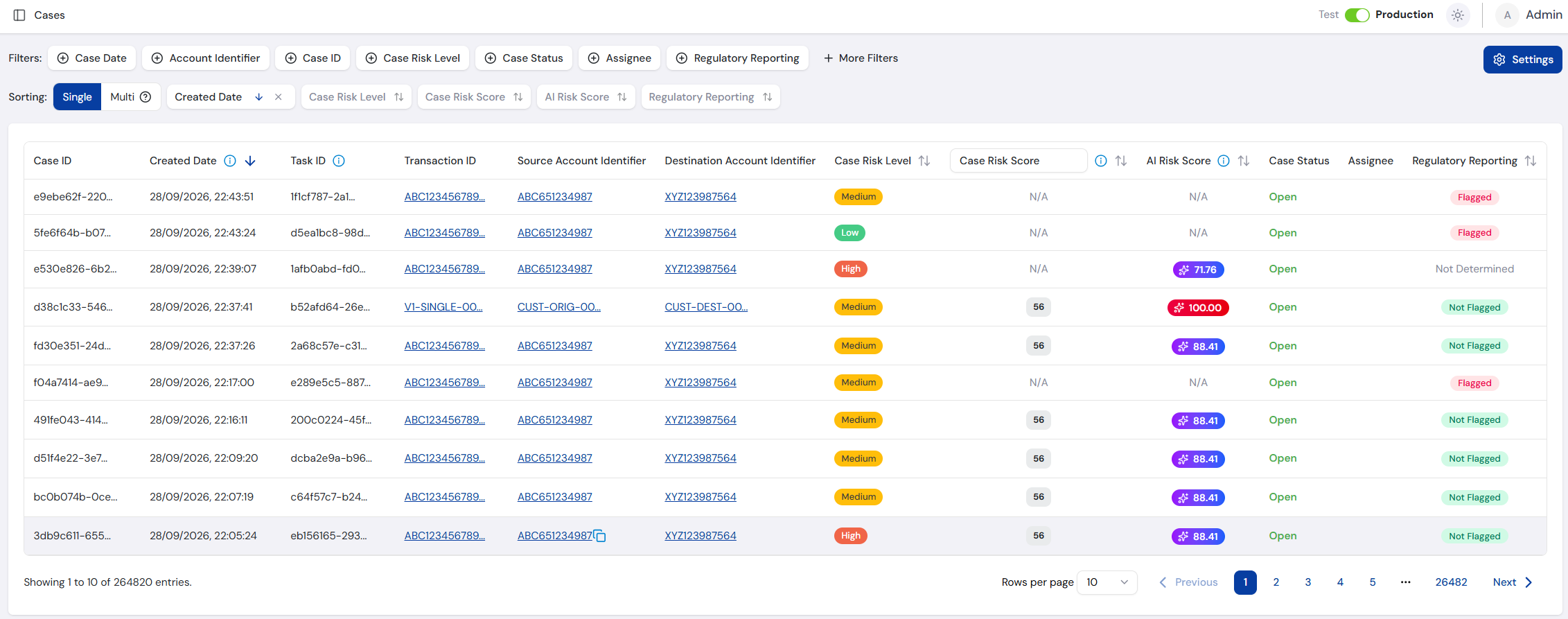
Search Filters
This section allows you to enter criteria for narrowing down cases. Each field is type-specific to help ensure the correct format.
- The Account Identifier field can partial match results, and searches both the Source and Destination fields.
- Use the Assignee filter to easily find cases assigned to a particular user.
- Select More Filters to show the case risk score, AI risk score and Task ID filters.
- Setting Min AI Risk Score or Max AI Risk Score leaves out cases without an AI risk score.
Included Filters
| Filter | Type | Description |
|---|---|---|
| Case Date | Date Picker | Filter cases based on when they were created. |
| Account Identifier | Text Search | Search cases by the account involved in the transaction. |
| Case ID | Text Search | Search cases using the unique case ID, assigned by the system. |
| Case Risk Level | Dropdown | Filter cases based on the assigned risk level. |
| Case Status | Dropdown | Filter cases based on their current status, e.g. Open, Investigating, Closed. |
| Assignee | Dropdown | Filter cases based on the assigned user. |
| Regulatory Reporting | Dropdown | Filter cases based on whether the case is Flagged or Not Flagged for regulatory reporting. |
| Min Case Risk Score | Number | Lower range for case risk score. |
| Max Case Risk Score | Number | Upper range for case risk score. |
| Min AI Risk Score | Number | Lower range for the AI risk score, as a whole number. |
| Max AI Risk Score | Number | Upper range for the AI risk score, as a whole number. |
| Task ID | Text | Internal processing group identifier for the batch or API request. |
Cases Table
After applying search filters, the results appear in a paginated table:
Case Information Columns
| Cases Field | Description |
|---|---|
| Case ID | Unique identifier for the case, assigned by the system. |
| Created Date | Date and time when the case was created. |
| Task ID | Internal processing group identifier for the batch or API request. |
| Transaction ID | Unique ID assigned to the transaction by the user, or auto-assigned by the system if not provided. |
| Source Account Identifier | Account ID that initiated the transaction, if available. |
| Destination Account Identifier | Account ID of the transaction's receiving account, if available. |
| Case Risk Level | Assigned risk level of the case (e.g. Low, Medium, High, Urgent). |
| Case Risk Score | Numerical score representing the assessed risk severity of the case. This column can be changed to show your preferred Risk Score Type. Shows N/A for cases created by Auto Case Creation or created manually, as no rule was flagged. |
| AI Risk Score | The transaction's AI risk score, to two decimal places. Shows N/A when the transaction was not scored. Sortable, with unscored cases always listed last in either direction. |
| Case Status | Current status of the case (e.g. Open, Investigating, Closed). |
| Assignee | User currently assigned to the case. |
| Regulatory Reporting | Whether the case is Flagged or Not Flagged for regulatory reporting. Shows Not Determined for cases created by Auto Case Creation, as no rule was flagged. |
Case Settings
The Case Settings control how new cases are assigned, whether cases are created from the AI risk score, how their risk levels are derived, and whether case closures require review. Each setting is organised under its own tab.
Automatic Case Assignment
The Automatic Case Assignment setting controls how newly created cases are distributed to users. There are three options:
- None - Automatic assignment is inactive. Cases will not be assigned to a user upon creation.
- Round Robin - Cases are distributed evenly by cycling through a selected group of users in turn. The rotation order can be customised by dragging users into the preferred sequence in the Assignment Order section.
- Least Assigned - Each new case is assigned to whichever user in the group currently has the fewest open cases.
When either Round Robin or Least Assigned is selected, an Assignment Pool is shown. This is the group of users eligible to receive new cases. Users can be searched by name, email, or username and toggled on or off as needed. Only users with an appropriate role are displayed as candidates for the pool.
If a user in the assignment pool subsequently loses the required role, a warning will be displayed. Remove them from the pool to ensure cases continue to be assigned correctly.
Changes to this setting are applied by selecting Save Settings.
Auto Case Creation Based on AI Risk Score
The Auto Case Creation Based on AI Risk Score setting creates cases for transactions that trigger no rules but still score highly with the AI model. When a transaction triggers no rules and its AI risk score falls within an enabled range, FraudShield creates a case with that range's risk level.
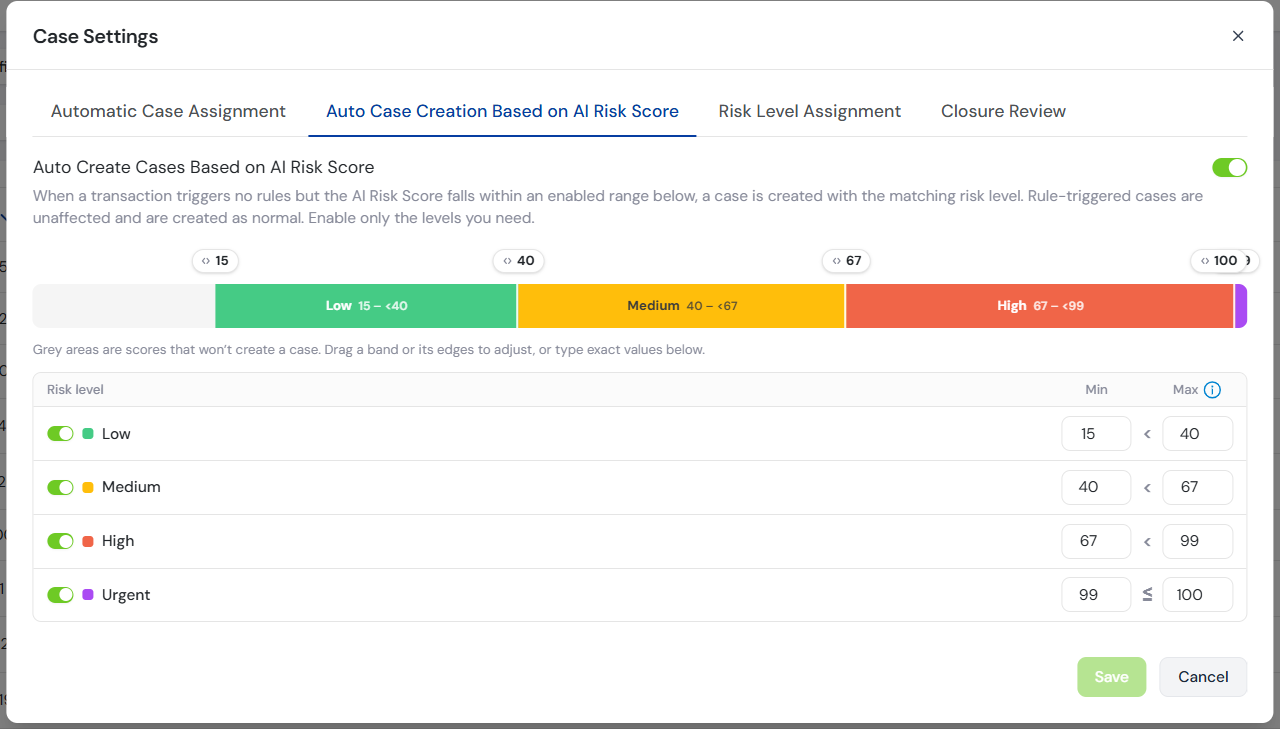
The setting applies to your whole organisation, in both the Production and Test environments. It only acts on transactions that were scored and triggered no rules:
- Rule-triggered transactions - Cases are created by your rules as normal, and still store the AI risk score. The ranges are not checked.
- Unscored transactions - Transactions processed without an AI risk score, because no model is enabled or scoring failed, never create a case this way.
Only the Org Owner/ Org Admin/ Business Manager roles can open and change this setting.
Configuring Ranges
Turn on Auto Create Cases Based on AI Risk Score to enable the setting, then enable the risk levels you need. Each risk level - Low, Medium, High and Urgent - has its own switch and a Min and Max score. All levels are off by default, with default ranges of 0-25, 25-50, 50-75 and 75-100.
Set a range by typing exact values into the Min and Max fields, or by dragging the edges of a band on the colour track above them. Grey areas of the track are scores that do not create a case. With a handle selected, the arrow keys move it by 1 and Shift with an arrow key moves it by 10.
A score that lands exactly on a level's Max moves up to the next level, so the ranges never overlap. The highest enabled level is the exception, as it includes its Max. For example, with Low 0-20 and Medium 20-40, a score of 20 is Medium, and a score of 40 is also Medium.
The following rules apply before the setting can be saved:
- Score limits - Every score must be a whole number between 0 and 100. Decimal values cannot be saved.
- Min and Max - Each level's Min must be less than its Max.
- No overlaps - Enabled ranges cannot overlap, although gaps between them are allowed.
- At least one level - When the setting is on, at least one risk level must be enabled.
Saving Changes
Select Save to open a confirmation dialog titled Enable Auto Case Creation Based on AI Risk Score or Disable Auto Case Creation Based on AI Risk Score. When enabling, it lists the ranges that will create cases. Type Confirm to enable the button, then select Enable or Disable to apply the change.
Changes apply to transactions processed afterwards. Each change is recorded in the Audit Logs.
Cases Created From the AI Risk Score
A case created by this setting:
- Takes the risk level of the matched range, with a Case Status of Open.
- Has no rule-based scores - Case Risk Score and the other rule-based scores show N/A, and Regulatory Reporting shows Not Determined in the Cases Table.
- Shows System in Created By, and is assigned by Automatic Case Assignment like any other case.
The Submit Single Transaction API returns these cases in caseDetails like any other case, without identifying them as created from the AI risk score.
Risk Level Assignment
The Risk Level Assignment setting controls how the Case Risk Level is derived when a case is created. There are two modes:
- Rule Inheritance - The case risk level is set to the highest risk level of any flagged rule. This is the default behaviour.
- Risk Bands - The case risk level is derived from the case risk score using configurable score bands.
Configuring Risk Bands
When Risk Bands is selected, choose the Driving Score used to derive the level: Case Risk Score (Sum), Normalised Score or PWNS. See Case Risk Scores for how each score is calculated. The Case Peak Score is not offered as a driving score, as banding on it is equivalent to Rule Inheritance.
Bands are defined by entering the lower bound of the Medium, High and Urgent bands - the four bands are derived from these three values, so gaps and overlaps are not possible. Values must be ascending and allow up to two decimal places. A score equal to a band's lower bound falls into that band.
Because the Case Risk Score (Sum) scale depends on the rules in each plan, selecting it also enables a Band Scope:
- Global - A single band set applies to cases from every rule plan.
- Per rule plan - A table of Finalised Rule Plans is shown, where each plan can be given its own thresholds. Plans without configured bands fall back to the global set.
Normalised Score and PWNS are percentage based, so they always use a single global band set on the 0-100 scale.
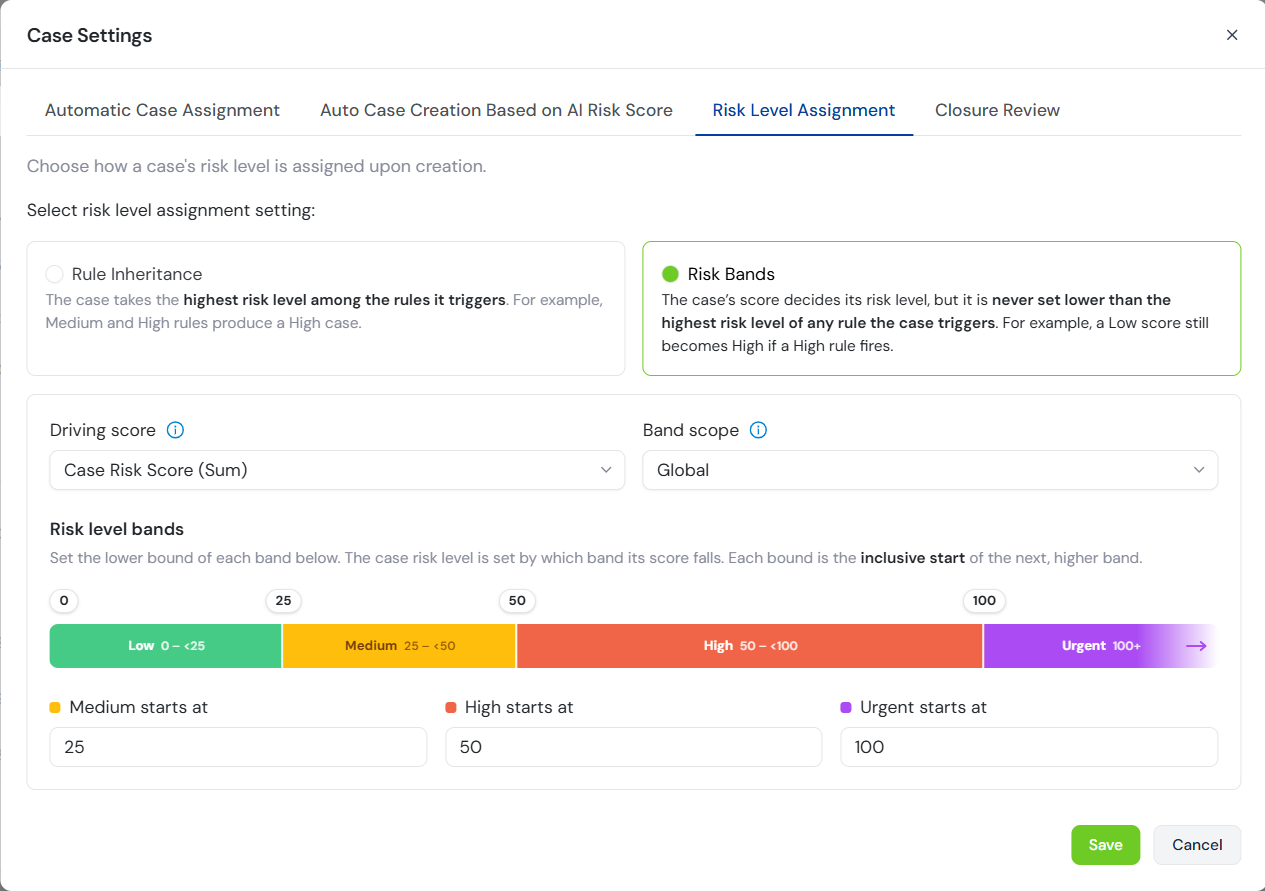
Banding can only escalate a case, never demote it. The final case risk level is the higher of the banded level and the highest flagged rule level, so a single critical rule always surfaces at its assigned level regardless of the overall score.
Changing the mode or band values affects only cases created afterwards. Existing cases keep their risk levels, and switching back to Rule Inheritance preserves the band configuration for later use.
Every case records how its risk level was derived. On the Case Information page, hover over the assignment method indicator beside the Case Risk Level field to see the driving score, the thresholds applied, and whether the band or a rule level determined the final result.
Closure Review
The Closure Review setting adds a four-eyes control to case closure. When enabled, in-scope cases cannot be closed directly - an investigator proposes the closure, and a second user approves or rejects it.
- Scope - Apply the review requirement to All cases, or Scoped to cases that are flagged for Regulatory Reporting or have ever held a selected Case Risk Level or higher - downgrading a case does not remove it from review.
- Closure Reviewers - The users eligible to approve or reject proposed closures. Users are searched and toggled on or off in the same way as the Assignment Pool, and only users with an appropriate role are shown. Reviewers can still propose closures on their own cases, but can never approve their own proposals.
Only the Org Admin and Org Owner roles can modify the Closure Review settings. Other users can view the configuration but not change it.
Closure Review cannot be enabled until at least two users hold an Edit Cases role, and at least one of them is added to the reviewer list. If eligible users later drop below two, the setting remains enabled and a warning is displayed - in-scope cases cannot complete closure until another eligible user is restored or the feature is disabled.
With only one eligible reviewer selected, closures proposed by that reviewer can never be approved, only withdrawn - proposals need to come from another user. Add a second reviewer so every proposal has an eligible approver.
Closure Review Workflow
- When closing an in-scope case, the Proposed Closure status appears in place of Closed. Selecting it prompts for a Status Reason using the same reasons as Closed, and optionally lets you reassign the case to a reviewer.
- The Case Information page then displays a Closure Review panel showing the proposed reason and the proposer. Any reviewer other than the proposer can Approve the closure, moving the case to Closed with the proposed reason, or Reject it with a mandatory comment, returning the case to Investigating.
- The proposer can Withdraw their own proposal before it is reviewed, also with a mandatory comment, returning the case to Investigating.
While a case is in Proposed Closure it is read-only - the status, risk level, notes, status reason and attachments cannot be changed, and only the Case Assignee can be updated. The case becomes editable again once the proposal is approved, rejected or withdrawn.
All proposals, approvals, rejections and withdrawals are recorded in the Case History, including in the exported case PDF.
If Closure Review is disabled while cases are in Proposed Closure, those cases keep their status and can then be closed directly.
Case Information
Selecting a case from the results table opens the Case Information page, which displays general case information, uploaded files, case history, and processed case rules.
General Case Information
An indicator shows whether the transaction was submitted by Batch File or API, along with its details:
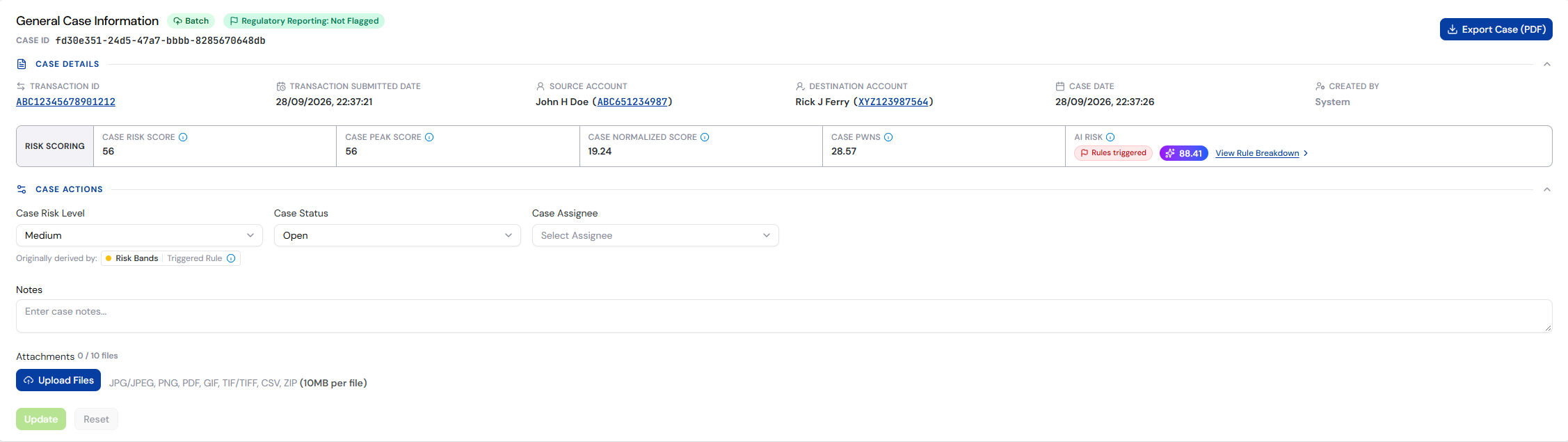
Case Information Fields
| Field | Description |
|---|---|
| Case ID | Unique identifier for the case, assigned by the system. |
| Transaction ID | Unique ID assigned to the transaction by the user, or otherwise auto-assigned by the system. Can be selected to navigate to the associated transaction. |
| Transaction Submitted Date | Date and time when the transaction occurred. |
| Source Account | Account ID that initiated the transaction, if available. Can be selected to navigate to the associated customer account. |
| Destination Account | Account ID of the transaction's receiving account, if available. Can be selected to navigate to the associated customer account. |
| Case Date | Date and time when the case was created. |
| Created By | User who created the case manually, or System for cases created automatically - by a flagged rule or by Auto Case Creation. |
| Case Risk Scores | See the Case Risk Scores section below. |
| Regulatory Reporting | A status of Flagged or Not Flagged, denoting whether a rule with Regulatory Reporting enabled has been triggered. Indicates this case may need to be reviewed and escalated to regulators. |
| Case Risk Level | Risk level of Urgent, High, Medium, or Low assigned to the case. Automatically set according to the Risk Level Assignment mode, and can be manually updated. The Originally derived by indicator below the field shows the assignment method and whether a Score Band or a Triggered Rule decided the level - hover over it for the full derivation. For a case created by Auto Case Creation, the field reads "Originally derived from Auto Case Creation based on AI Risk Score." instead. |
| Case Assignee | Currently assigned case manager. Can be manually updated. |
| Case Status | See the Case Status section below. |
| Notes | Long-form notes section. Any case manager can add notes here. Editing overwrites previous notes, though the old note is saved in the Case History. |
The following actions are available from this page:
- Export Case (PDF) - Exports all case information, including transaction details, as a styled PDF document. See Export Case.
- Upload Files - Opens the file upload prompt to add a case attachment.
Case Attachments
Files can be attached to a case for evidence or reference. Select Upload Files to open the file upload prompt. Up to 10 files (max 10 MB each) can be attached per case - supported formats are JPG, JPEG, PNG, PDF, GIF, TIF, TIFF, CSV, and ZIP. Uploaded files can be Previewed, Downloaded, or Deleted.
Every file inside a ZIP archive must itself be a supported format.
Export Case
Select Export Case (PDF) to download the case as a PDF report. When the case's transaction was scored by an AI model, or AI scoring failed for it, the report also carries AI results. For a scored transaction, these are:
- AI Risk Assessment - A section showing the scoring status, the AI risk score and the Top Rules by Impact. When a rule flagged the transaction, it also includes the same Rules triggered explanation shown in the dashboard.
- Processed rules - The Impact, Influence and Direction of each processed rule.
If AI scoring failed for the transaction, the AI Risk Assessment section shows the status and the notice "AI risk assessment could not be completed. The risk score is unavailable." When a rule flagged the transaction, the section also includes the Rules triggered explanation. A case whose transaction was never scored carries nothing AI-related.
For cases created by Auto Case Creation or created manually, the rule-based case scores in the report show N/A. Cases created by Auto Case Creation also show Not Determined for Regulatory Reporting.
Case Risk Scores
The Case Risk Score is broken up into four separate scores. Each score is designed to cover a different use case, providing options to find an appropriate workflow.
The four scores are calculated from the rules the transaction flagged, so they show N/A for cases created by Auto Case Creation or created manually. The Risk Scoring strip also shows an AI Risk tile, which comes from the AI model rather than the rules.
The examples below refer to the case pictured above and its associated Processed Case Rules. It was processed using a Rule Plan that has an atypical scoring structure with rules ranging between 0-46000 to demonstrate how individual rules with large scores can skew case risk scores.
- Case Risk Score - Provides the sum of all triggered rule scores.
- Use Case - Useful for giving a basic understanding of how risky a case may be by adding all the individual rules together. However, the score is on a scale specific to a single rule plan (in this case 0-46000), and may be hard to compare to cases using other scoring scales.
- Example scoring - All the Flagged rules add up to a score of 2890. If this were being compared to a rule plan using a scoring scale of 0-100, it would be hard to get a meaningful result.
- Formula:
- Case Peak Score - Provides the rule risk value of the highest triggered rule only.
- Use Case - Useful if you are most interested in what is deemed the most risky rule, rather than the cumulative score of all rules.
- Example scoring - The highest Flagged rule Test Rule 2 has a score of 1000, leading to a case risk score of 1000. Similar to the Case Risk Score, it is hard to compare to cases from other rule plans.
- Formula:
- Case Normalised Score - Calculated by dividing the total value of all triggered rules by the total maximum value of all rules in the current rule plan, then expressed as a percentage.
- Use Case - Useful for providing a higher-level risk understanding as the score takes into account the overall possible risk for a rule in that specific plan, expressed as a percentage. This makes it possible to compare to any case past or future, independent of their scoring scale. However, this method does lose some low-level information about specific rules.
- Example scoring - The total triggered rule value (2890) is divided by the total maximum value for the rule plan (49046) then multiplied by 100 to provide a percentage value of 5.89. In this example Test Rule 8's score of 45656 is heavily skewing the result to be a low score. However, it would still be possible to compare this score to a 0-100 scale if required.
- Formula:
- Where:
S_max-sum= sum of all rule scores in the rule plan.
- Where:
- Case Peak-Weight Normalised Score (PWNS) - Scoring method similar to the Normalised Score by expressing the case risk score as a percentage-based normalised score, based on the total possible score from its rule plan. It also adds a dynamically scaling ratio component that favours a higher value single risk rule if present, compared to the other triggered rules.
- Use Case - Useful if you still want a normalised score, but would like to prioritise a single high-value rule to avoid it being diluted in importance if a lot of small rules are triggered as well.
- Example scoring - First calculate the ratio comparing a high risk rule to the total rules (
α). This is(1000/2890) x (45656/49046), makingα= 0.32. Putting all the values into the formula,((0.32 x (1000/45656)) + ((1-0.32) x 2890/49046)) x 100gives a case score of 4.70. This is a slightly lower score than the normalised score, as there was no significantly high rule triggered when looking at the overall plan. - Formula:
- Where:
S_peak= highest individual rule score in the case.S_total= sum of triggered rule scores.S_max= highest rule score in the plan.S_max-sum= sum of all rule scores in the plan.α= dynamic weight factor.
- Where:
Calculating α (Peak vs. Total Weighting)
Formula:
AI Risk
The AI Risk tile shows the transaction's AI risk score from 0 to 100. Unlike the four rule-based scores, it is calculated independently of the rule results and does not change when a rule triggers. See How AI Risk Scoring Works for what the score means.
- Rules triggered - A badge shown when a rule flagged the transaction and it was also scored.
- View Rule Breakdown - Scrolls to the Processed Case Rules, where the AI Risk Assessment panel explains the score.
The tile shows N/A when the transaction was not scored.
Case Status
The case status is by default set to Open when the case is created. You can then manually update the case status according to the investigation and internal processes: Open, Investigating, Escalated, On Hold and Closed.
When Closure Review is enabled and the case is in scope, Proposed Closure appears in place of Closed. The case then remains in Proposed Closure until a reviewer approves or rejects the closure, or the proposer withdraws it.
Additionally, when you select one of the following statuses, you will be prompted to enter a Status Reason:
- Escalated - Regulatory Requirement, High Value/High Risk, Specialisation Requirement, Management Review, Other.
- On Hold - Pending Information, Temporary Pause, Other.
- Closed - Fraud Confirmed, Fraud Confirmed (Regulatory Report Submitted), False Positive, Fraud Prevented, Incorrect Information, Insufficient Evidence, Other.
- Proposed Closure - Uses the same reasons as Closed.
If Other is chosen, you will be able to manually enter text for the reason.
Case History
The Case History will log all events relevant to the case. Case managers can also leave notes here describing actions taken outside of FraudShield to keep a full audit trail.
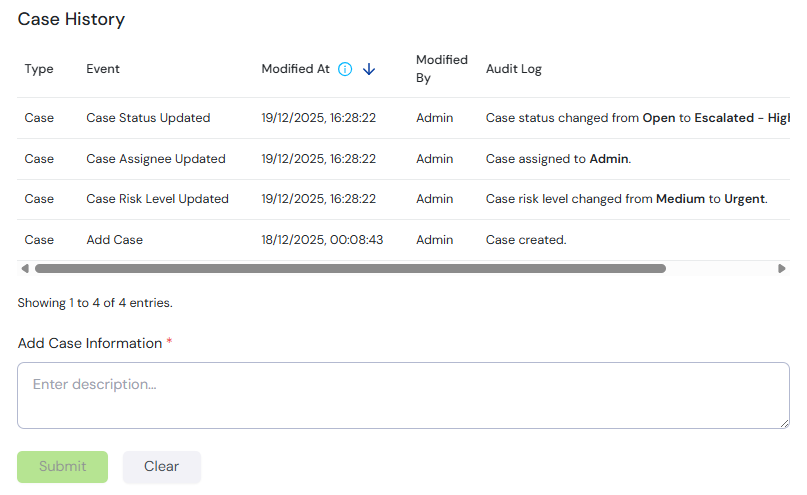
Case History Columns
| Column | Description |
|---|---|
| Type | Event log type, always shown as "Case" in this section. |
| Event | Specific type of case event. |
| Modified At | Date and time when the event occurred. |
| Modified By | Username responsible for the event. |
| Audit Log | Detailed description of the event. |
Processed Rules
Information is shown about the rules that were processed as part of transaction monitoring. All rules will be shown with a status of either Flagged, Not Flagged or Error, with links to the rule information for further review if required. This allows case managers to have a direction for the investigation based on the flagged rules, and to know what they can ignore based on the not-flagged rules.
When a flagged historical rule was triggered by multiple transactions - for example, a structuring rule where several transactions collectively exceed a threshold - the contributing transactions are shown in the Related Transactions column as selectable links, so each one can be reviewed as part of the investigation.
The Rule Plan can also be selected to view details about the rule plan that was used.
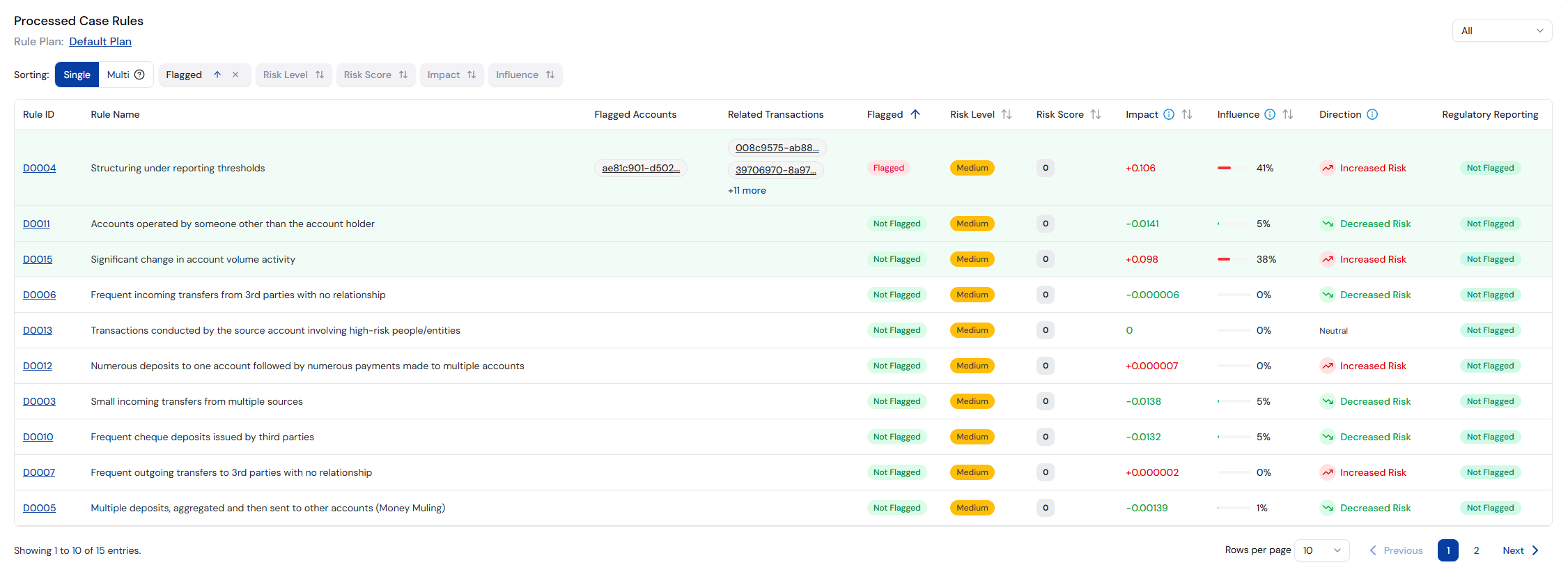
Processed Rules Columns
| Rule Fields | Description |
|---|---|
| Rule ID | Unique ID assigned to the rule. |
| Rule Name | Name of the rule. |
| Flagged Accounts | Identifies which accounts were flagged for investigation if the rule was flagged. |
| Flagged | Status of the rule processing: Flagged, Not Flagged or Error. |
| Risk Level | Current risk level of the rule: Low, Medium, High, Urgent. |
| Risk Score | A numeric value representing the severity of the rule. This score contributes to the overall risk profile when a case is raised. |
| Regulatory Reporting | When enabled, any case raised by this rule will be flagged for regulatory reporting. |
| Impact | How many points the rule pushed the AI risk score up or down, compared with a typical transaction. Sortable. Shown only when the transaction was scored. |
| Influence | How much the rule mattered to the AI risk score, relative to the other rules, as a percentage. Sortable. Shown only when the transaction was scored. |
| Direction | Whether the rule pushed the AI risk score up or down: Increased Risk, Decreased Risk or Neutral. Shown only when the transaction was scored. |
When the transaction was scored, the AI Risk Assessment panel appears above the table, showing the AI risk score and the Top Rules by Impact. The rows of the top rules are tinted green in the table. If AI scoring failed, the panel shows an error notice instead, and there is no panel when AI scoring is not enabled. The panel is the same one shown on the transaction - see AI Risk Assessment.
Regulatory Reports
The Regulatory Reports tab can be selected to generate a new regulatory report from a Regulatory Report Template or view existing reports.

Generate Report
Selecting this option will prompt you to select from any enabled templates. Once an option has been chosen, all Default and Pre-Defined fields will be pre-filled with the appropriate data.
You can then edit this data (if the template allows editing), as well as fill in any Custom fields. All required fields must have a value before the report can be saved.
Export Report
Once saved, the report will be shown in the report list. You can Duplicate the report if required, allowing fields to be updated and the final report saved as a new copy.
The reports can be exported in three formats:
- PDF - Downloads the report in PDF format, with fields grouped as document headings and sub-headings.
- CSV - Downloads the report in CSV format, with fields grouped using their headings then sub-headings, and headings added as a prefix to the field name.
- XML - Downloads the report in XML format, with grouping defining how the final XML document is structured. Each top-level group acts as parent to its subgroups and fields.
All regulatory reports are immutable. Once created, a report cannot be edited, modified, or deleted, ensuring it remains a permanent, tamper-proof record for regulatory review and legal proceedings.
For more information on creating and managing regulatory report templates, see the Regulatory Reports page.