Customers
The Customer Search page is used to query and review customer profiles.
FraudShield automatically generates customer profiles whenever a transaction is submitted, with unique profiles based on the Customer Identifier. This identifier is the Customer Reference field if it is provided, otherwise the Account ID is used.
This allows you to keep accurate profiles on your customers (who may have multiple accounts), while still being able to maintain customer histories for other accounts your customers interact with.
Search Filters
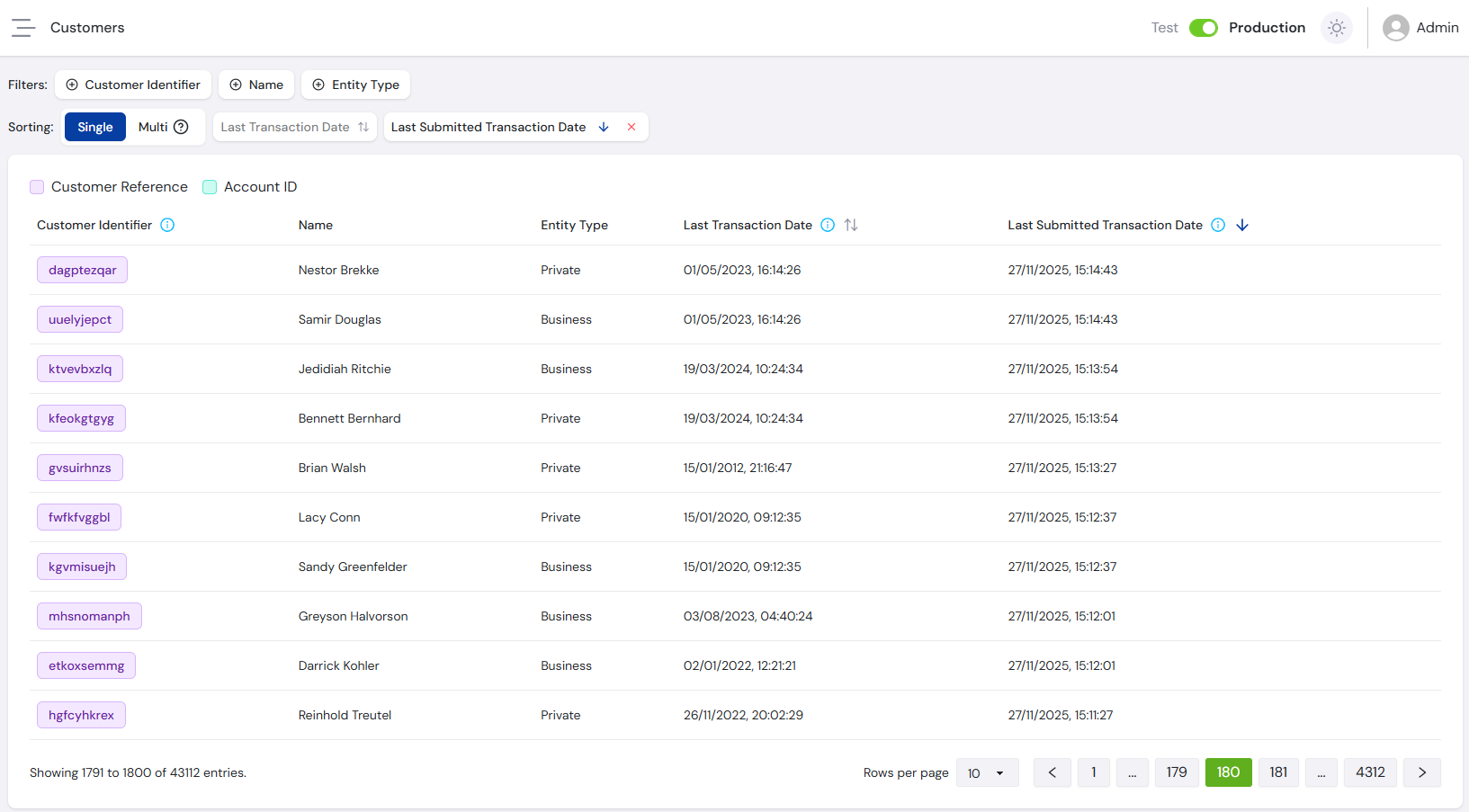
Use the filters below to find specific customers. Each field is type-specific to help ensure the correct format.
- The Account Identifier field can partial match results, and searches both Customer Reference and Account ID fields.
- The Name field can partial match results, and searches all variations of the customer's name fields.
Included Filters
| Filter | Type | Description |
|---|---|---|
| Customer Identifier | Text Search | Search customers by either their Customer Reference or Account ID fields, partial matching available. |
| Name | Text Search | Search customers by all variations of their name fields, partial matching available. |
| Entity Type | Dropdown | Filter customers based on their entity type, Business or Private. |
Customers Table
After applying search filters, the results appear in a paginated table:
Customer Information Columns
| Column | Description |
|---|---|
| Customer Identifier | Unique identifier for the customer. The Customer Reference field if it is known, otherwise the Account ID. |
| Name | Provided name for the customer. Uses the fullName field if it was provided, otherwise the concatenation of the firstName, middleName and lastName fields is used. |
| Entity Type | Entity type of the customer, either Business or Private. |
| Last Transaction Date | Date and time of the last transaction involving the customer. |
| Last Submitted Transaction Date | Date and time when the last transaction involving the customer was submitted to FraudShield. |
Customer Profile
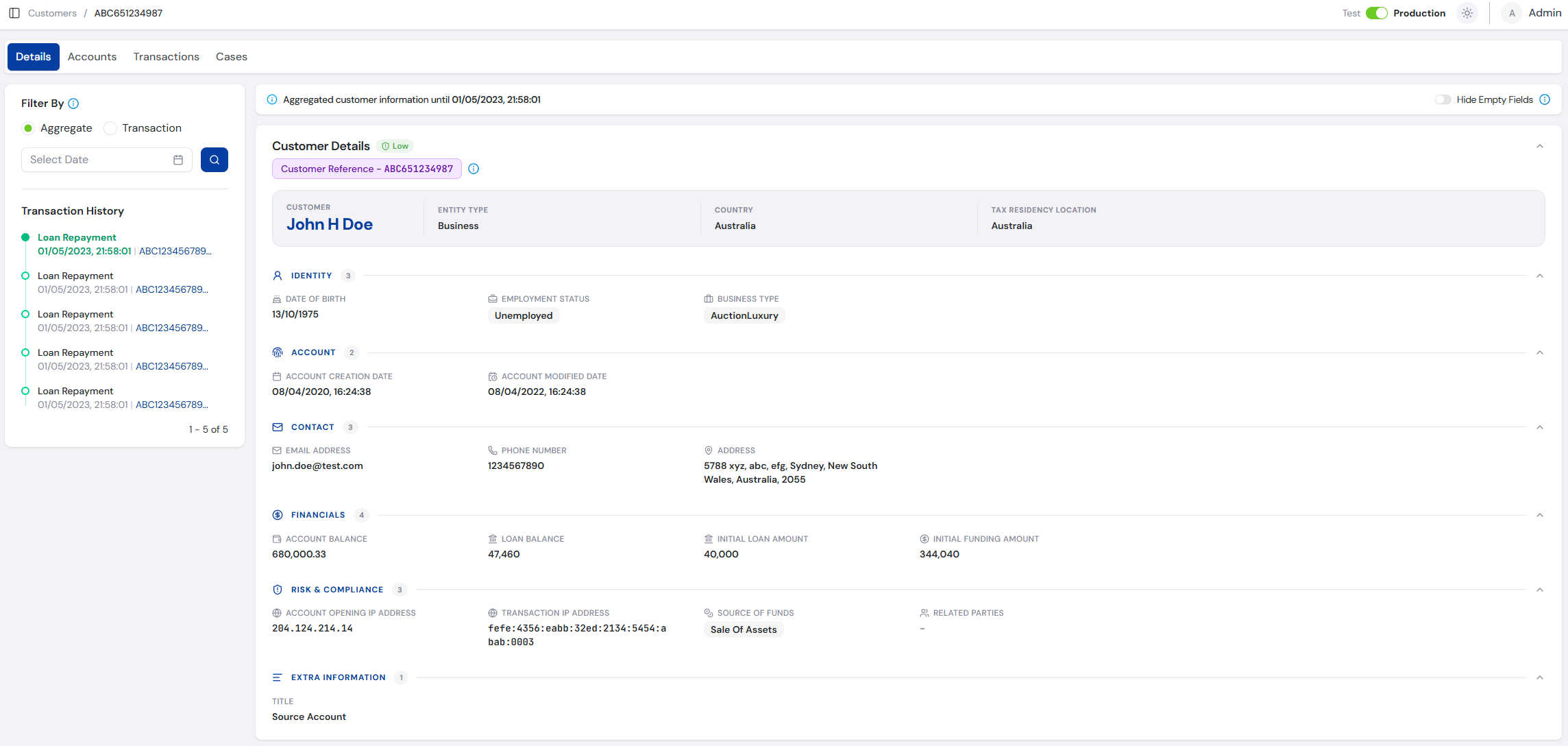
Selecting a customer from the results table opens the Customer Profile page, which displays all customer information, related accounts, and any transactions and cases the customer has been involved in.
Customer Details
FraudShield automatically collects customer details every time a new transaction is processed involving that customer.
For more information about the specific fields shown, see the Submit Transaction API docs, specifically either the originAcct or destAcct objects.
If any fields have changed between the information you are viewing and the previously recorded transaction, FraudShield highlights them. The new value appears in Green, with the old value in Red.
The Customer Profile page allows you to view customer information in two ways. Select the preferred option at the top of the Customer Details section.
Aggregate
The Aggregate option aggregates customer information up to a certain date, showing the last recorded value for each field regardless of which transaction it came from.
This gives an up-to-date overview of the customer, even if different fields were provided across multiple transactions. The following gives an example of multiple transactions being processed for a single customer:
| Field | Transaction 1 | Transaction 2 | Transaction 3 | UI Display |
|---|---|---|---|---|
| john@mail.com | john@mail.com | john@mail.com | john@mail.com | |
| IP Address | 204.124.214.14 | 204.124.214.14 | 207.124.614.17 | 207.124.614.17 |
| Date of Birth | 01/01/1980 | 01/01/1980 |
By default, information is aggregated to the last recorded transaction. You can also aggregate by:
- A specific date - by entering the date in the search box.
- A transaction date - by selecting that transaction from the transaction history timeline.
Transaction
The Transaction option shows the customer information submitted in a specific transaction. If a field was left blank in that transaction, it appears empty - even if the field was submitted in a previous transaction.
This is useful for audit purposes if customer information needs to be confirmed at the time of a transaction, or to assist with troubleshooting rules that are flagging incorrectly.
By default, the latest transaction is selected. Selecting a different transaction from the transaction history timeline shows its information.
If you have a preferred way to view customer information, set it in your User Preferences.
Hide Empty Fields
A Show/Hide toggle appears on the right-hand side of the banner at the top of the Customer Details section.
The toggle is pre-populated from the Hide Empty Fields > Customer Details preference on the Profile page.
When set to Hide, any fields with no value are hidden from the Customer Details section. If all fields within a group are empty, the group heading is also hidden.
Toggling between Show and Hide updates the global preference automatically.
Accounts
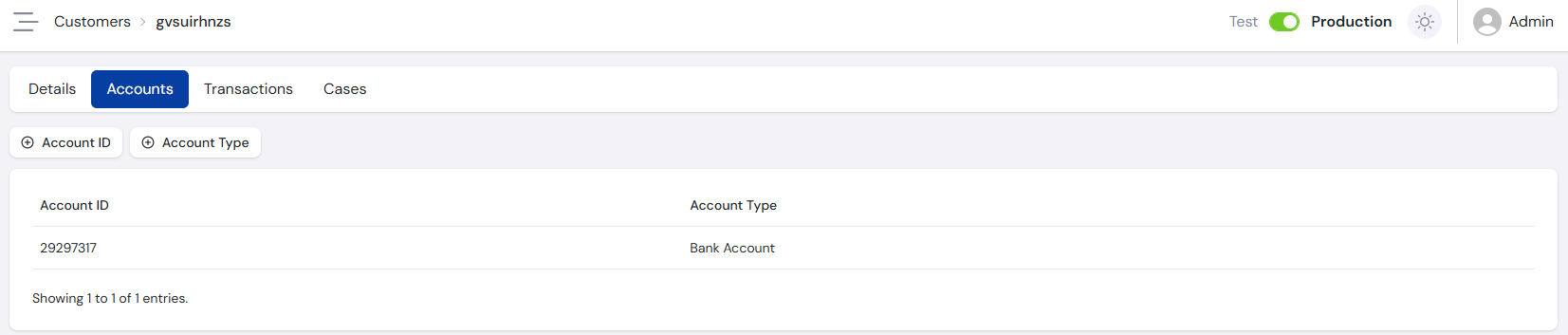
A customer may have multiple accounts with your business, e.g. a Bank Account and a Loan Account, or even multiple types of a specific account.
Every time a transaction is submitted using an existing Customer Reference and a new unique accountId, FraudShield records it and displays it on this tab.
Filter by a specific Account ID or use the Account Type dropdown.
Transactions
All Transactions the customer has been involved in as either the source or destination account appear on this tab. Selecting a transaction opens the same Transaction Details page, including its AI risk score when the transaction was scored.
For more information on this screen, see the main Transactions page.
Cases
All Cases the customer has been involved in as either the source or destination account appear on this tab.
The tab includes the sortable AI Risk Score column, which shows N/A for a case whose transaction was not scored. As in the Cases Table, cases created by Auto Case Creation show N/A for Case Risk Score and Not Determined for Regulatory Reporting.
For more information on this screen, see the main Cases page.
For a full explanation of how customer profiles are built during transaction processing, see the Transaction Flow guide.