AI Models
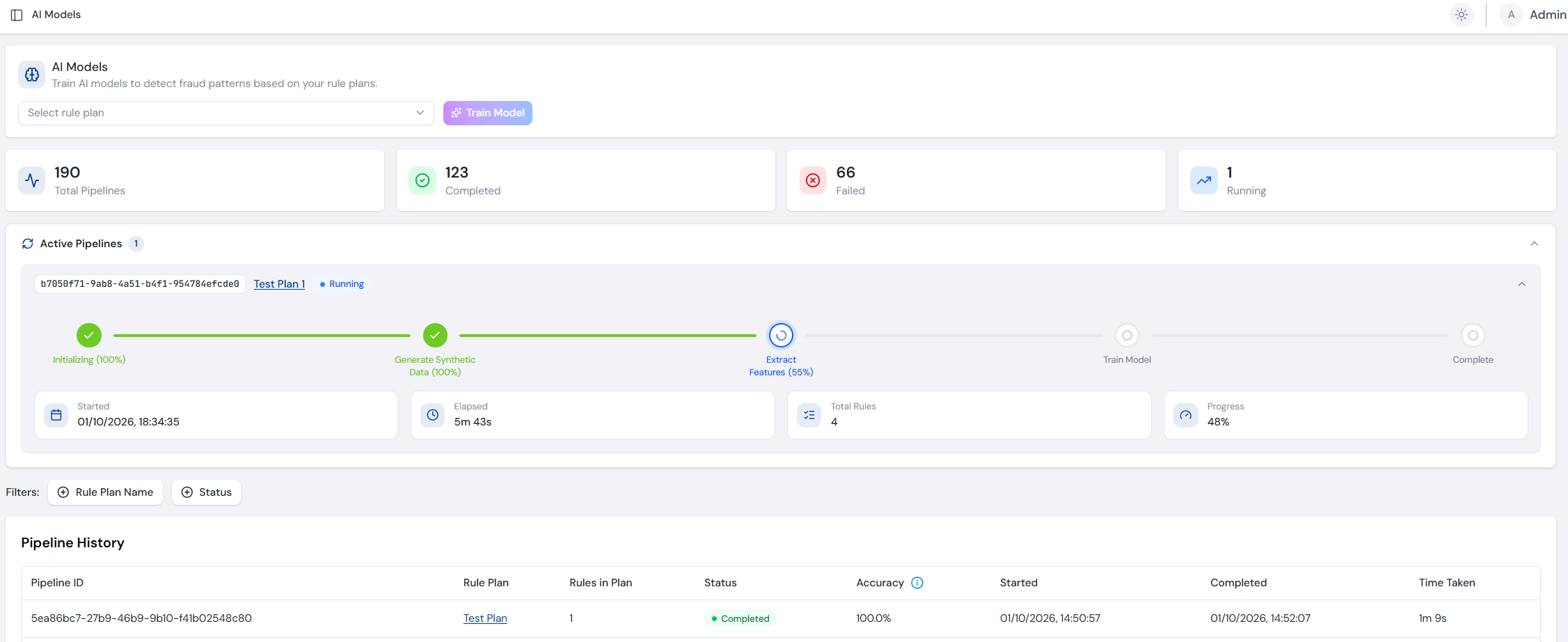
The AI Models page is used to train AI models on your rule plans and to track the progress and results of every training pipeline. Once enabled, a trained model gives each processed transaction an AI risk score - see How AI Risk Scoring Works for what the score means.
The Production and Test environment toggle is hidden on this page. Training a model does not put it to use - you enable each trained model for an environment from Rule Plans.
Access
The AI Models menu item sits directly after Rule Plans. What you can do on the page depends on your role:
- Org Owner/ Org Admin/ Rules Manager - Full access, including training models.
- Rules Viewer - Read-only access. The Select rule plan and Train Model controls are not shown.
For the full list of permissions, see User Roles.
Train a Model
Models are trained on Finalised rule plans only. To start a training pipeline from this page:
- Choose a plan from the Select rule plan dropdown in the page header. Each option shows the plan's Display ID, name and number of rules.
- Select Train Model. The button stays disabled until a plan is selected.
Training starts immediately, without a confirmation step, and FraudShield confirms it with a "Pipeline started" message. You can keep using the application while the pipeline runs.
Your organisation trains one model at a time. A pipeline started while another is in progress waits as Pending until the earlier one finishes. A plan that already has a pipeline in progress cannot be trained again until that pipeline finishes - FraudShield shows an error instead.
You can also start training from an expanded Finalised plan on the Rule Plans page. For a full walkthrough from training through to enabling a model, see Training and Activating a Model.
Pipeline Statistics
The tiles at the top of the page summarise all training pipelines in your organisation:
- Total Pipelines - Every training pipeline that has been started.
- Completed - Pipelines that finished and produced a trained model.
- Failed - Pipelines that ended without producing a model.
- Running - Pipelines still in progress, including those that are Pending or Retrying.
Active Pipelines
The Active Pipelines panel appears while at least one pipeline is in progress, with the number of active pipelines shown in its header. Select the header to collapse or expand the panel. It refreshes automatically every 10 seconds and disappears once no pipeline is active.
Each pipeline shows its Pipeline ID, the Rule Plan it is training (select it to open the plan) and a status badge.
Pipeline Statuses
| Status | Description |
|---|---|
| Pending | The pipeline is waiting to start. Your organisation trains one model at a time, so a new pipeline stays Pending until any earlier one finishes. |
| Running | The pipeline is working through its steps. |
| Retrying | A step is being retried automatically. No action is needed. |
| Completed | The pipeline finished and the model is ready to enable. |
| Failed | The pipeline ended without producing a model, for example because its retries ran out, it stopped reporting progress or it waited too long to start. Start a new training run for the plan. |
| Cancelled | FraudShield support stopped the pipeline before it completed. Start a new training run if you still need the model. |
A timeline tracks each pipeline through its steps: Initializing, Generate Synthetic Data, Extract Features, Train Model and Complete. The step in progress shows its percentage, completed steps show 100%, and a failed step is marked with a red cross.
Pipeline Details
| Field | Description |
|---|---|
| Started | Date and time the pipeline started. |
| Elapsed | Time since the pipeline started. |
| Total Rules | Number of rules in the rule plan being trained. |
| Progress | Overall progress of the pipeline, as a percentage. |
The panel does not show retry counts or error messages.
Search Filters
Use the filters above the Pipeline History table to find past training runs. Select Clear All to reset them.
- The Rule Plan Name field supports partial matching, so part of a plan name is enough.
- Set Status to Failed to find plans that need a new training run.
Included Filters
| Filter | Type | Description |
|---|---|---|
| Rule Plan Name | Text Search | Search pipelines by the name of the rule plan they trained, partial matching available. |
| Status | Dropdown | Filter pipelines by their outcome: Completed or Failed. |
Pipeline History Table
The Pipeline History table lists finished training pipelines in a paginated table. When no pipeline matches, it shows "No pipeline history found".
Pipeline History Columns
| Column | Description |
|---|---|
| Pipeline ID | Unique identifier for the training pipeline. Trained models are listed by this ID when you enable them. Select the copy icon to copy it. |
| Rule Plan | Name of the rule plan the model was trained on. Select it to open the plan. |
| Rules in Plan | Number of rules in the rule plan. |
| Status | Current status of the record. |
| Accuracy | How well the model distinguishes risky transactions from safe ones, measured on test data held back from training. Shown as a percentage to one decimal place (e.g. 94.2%) - higher is better. Shows - when no accuracy figure is available. |
| Started | Date and time the pipeline started. |
| Completed | Date and time the pipeline finished. |
| Time Taken | How long the pipeline took to finish. |
Accuracy is the only model metric shown, and it is also listed against each model in the Trained Models dialog, where you choose which model to enable.