Transaction Search
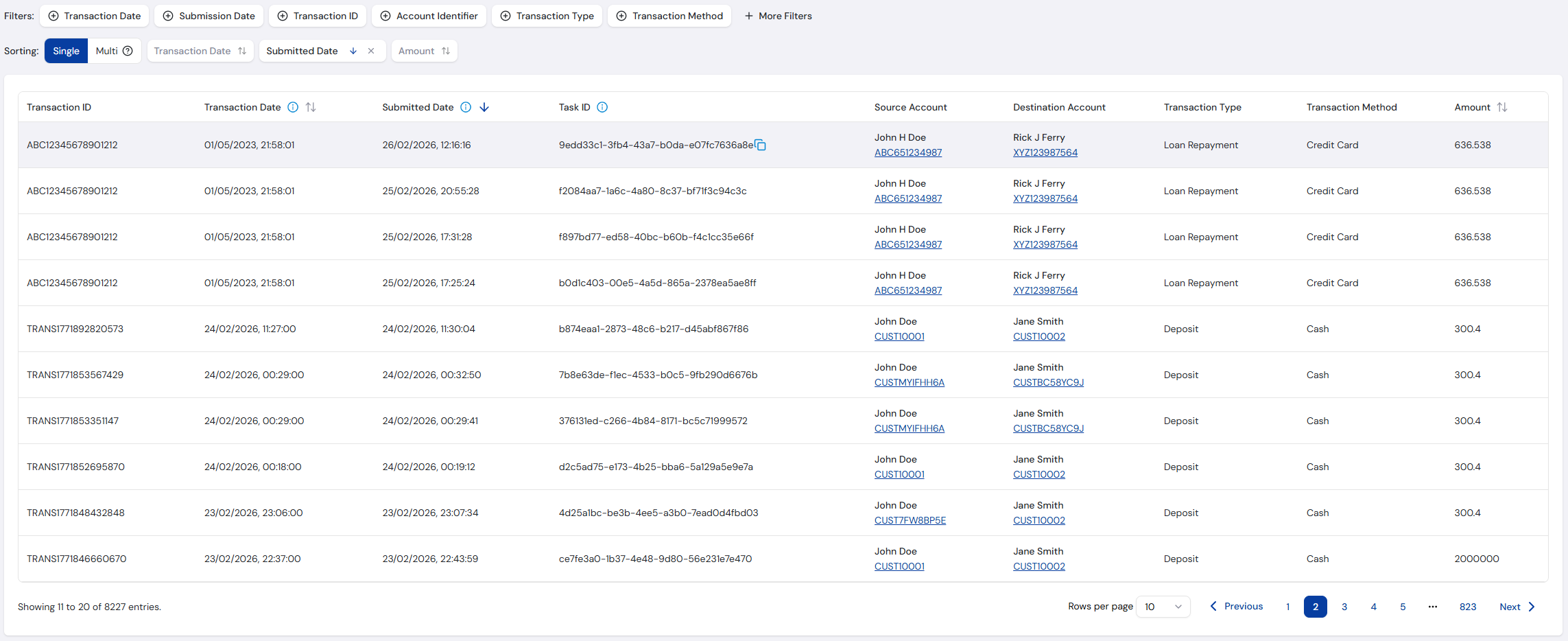
The Transaction Search page is used to query and analyse submitted transactions. This page is typically used to investigate specific transaction IDs or patterns.
Search Filters
This section allows you to enter criteria for narrowing down transactions. Each field is type-specific to help ensure the correct format.
- Double-check whether you're filtering on transaction date or submission date - they may differ due to delays in submission.
- Task IDs are useful when you want to filter by a specific batch.
Included Filters
| Filter | Type | Description |
|---|---|---|
| Transaction Date | Date Picker | Filters transactions by the date they occurred. |
| Submission Date | Date Picker | Filters based on when the transaction was submitted to the system. |
| Transaction ID | Text | Specific identifier to find a transaction, partial matching supported. |
| Account Identifier | Text | Partial or full match on any account involved in the transaction (source or destination). |
| Transaction Type | Single Select | Type of transaction (e.g. Deposit, Transfer, Withdrawal). |
| Transaction Method | Single Select | Method used (e.g. Cash, Credit Card, Crypto). |
| Min Transaction Amount | Number | Lower range for transaction amount. |
| Max Transaction Amount | Number | Upper range for transaction amount. |
| Task ID | Text | Internal processing group identifier for the batch or API request. |
| Rule Processing | Single Select | Filters based on whether rule processing was Skipped or Not Skipped. |
Transaction Results Table
After applying search filters, the results appear in a paginated table:
Transaction Information Columns
| Column | Description |
|---|---|
| Transaction ID | Unique ID assigned to the transaction by the user, or auto-assigned by the system if not provided. |
| Transaction Date | When the transaction occurred. |
| Submitted Date | When the transaction was processed into the system. |
| Task ID | Internal processing group identifier for the batch or API request. |
| Source Account | Account ID that initiated the transaction, if available, shown with the customer name when provided. |
| Destination Account | Account ID of the transaction's receiving account, if available, shown with the customer name when provided. |
| Transaction Type | Classification such as Deposit, Transfer, etc. |
| Transaction Method | Payment method used, like Credit Card or Cash. |
| Amount | Transaction value, formatted as a decimal. |
Transaction Information
Selecting a transaction from the results table opens the Transaction Details page, which displays all transaction and account details provided in the original submission, along with processed rules.
Transaction Details
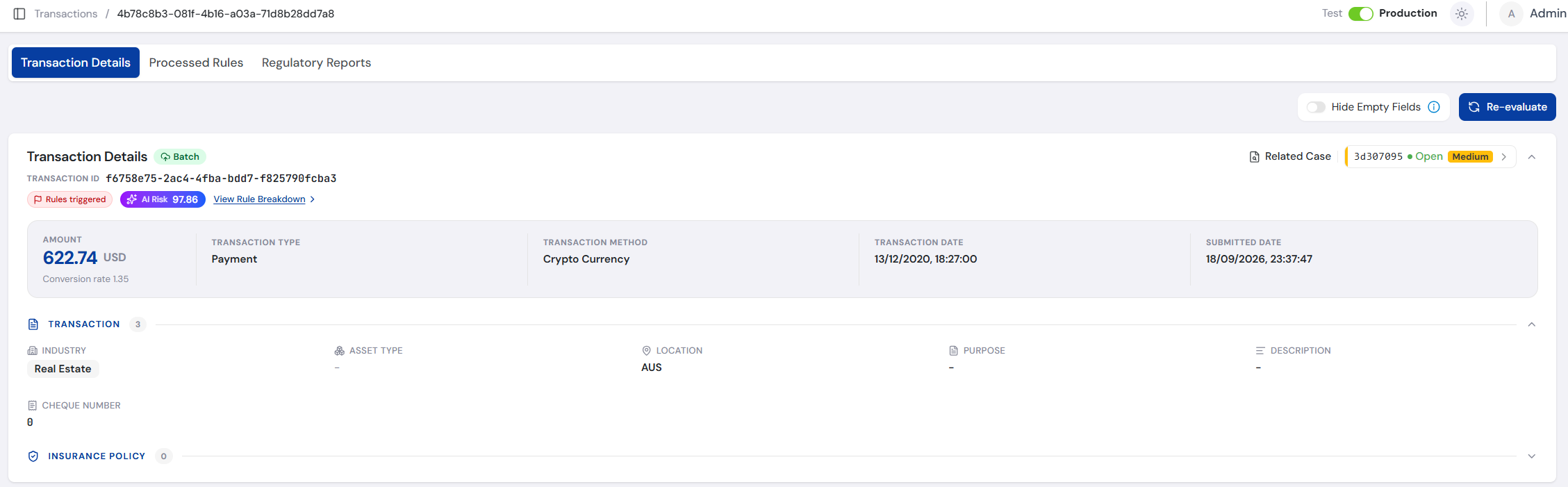
An indicator shows whether the transaction was submitted by Batch File or API, along with its details. Any cases associated with the transaction are shown alongside the section title - select a case to open its Case Information page.
Transaction Details
| Column | Description |
|---|---|
| Transaction ID | Unique ID assigned to the transaction by the user, or auto-assigned by the system if not provided. |
| Transaction Date | When the transaction occurred. |
| Submitted Date | When the transaction was processed into the system. |
| Transaction Method | Payment method used, like Credit Card or Cash. |
| Transaction Type | Classification such as Deposit, Transfer, etc. |
| Industry | Industry associated with the transaction (e.g. Banking, Crypto, Insurance). |
| Amount | Transaction value, formatted as a decimal. |
| Currency | Currency used for the transaction, in ISO format (e.g. USD). |
| Purpose | Purpose of the transaction. |
| Location | Location related to the transaction, in ISO format (e.g. AUS). |
| Cheque Number | Cheque number (if applicable). |
| Asset Type | Type of asset involved (if any). |
| Conversion Rate | Rate used for currency conversion. |
| Description | Additional information or notes provided about the transaction. |
| Insurance Policy Value | Value of the related insurance policy. |
| Insurance Policy Purchase Date | Date when the insurance policy was purchased. |
| Insurance Policy Type | Type of insurance policy (if applicable). |
| Insurance Policy Premium Amount | Premium amount associated with the insurance policy. |
| Insurance Policy Surrender Period | Period after which the policy can be surrendered. |
| Insurance Policy Surrender Penalty | Penalty incurred upon surrendering the policy. |
AI Risk Score
When the transaction was scored by an AI model, its AI risk score appears under the page header:
- Rules triggered - A red badge, shown first when a rule flagged the transaction. Hover over it for how rule results relate to the AI risk score.
- AI Risk - The AI risk score from 0 to 100, to two decimal places. Hover over it for what the score means.
- View Rule Breakdown - Opens the Processed Rules tab, where the AI Risk Assessment panel explains the score.
If scoring completed but the model returned no score, AI Risk shows Not Scored, with the tooltip "The model did not return a risk score for this transaction."
When the transaction has been submitted more than once, an AI Risk Score box shows the score for one submission at a time, labelled Submission n of total. Use the Select Submission Date dropdown to switch submission. The box shows N/A for a submission that was not scored.
For a transaction submitted once, none of this appears when it was not scored. For what the score means and when a transaction is scored, see How AI Risk Scoring Works.
Account Details
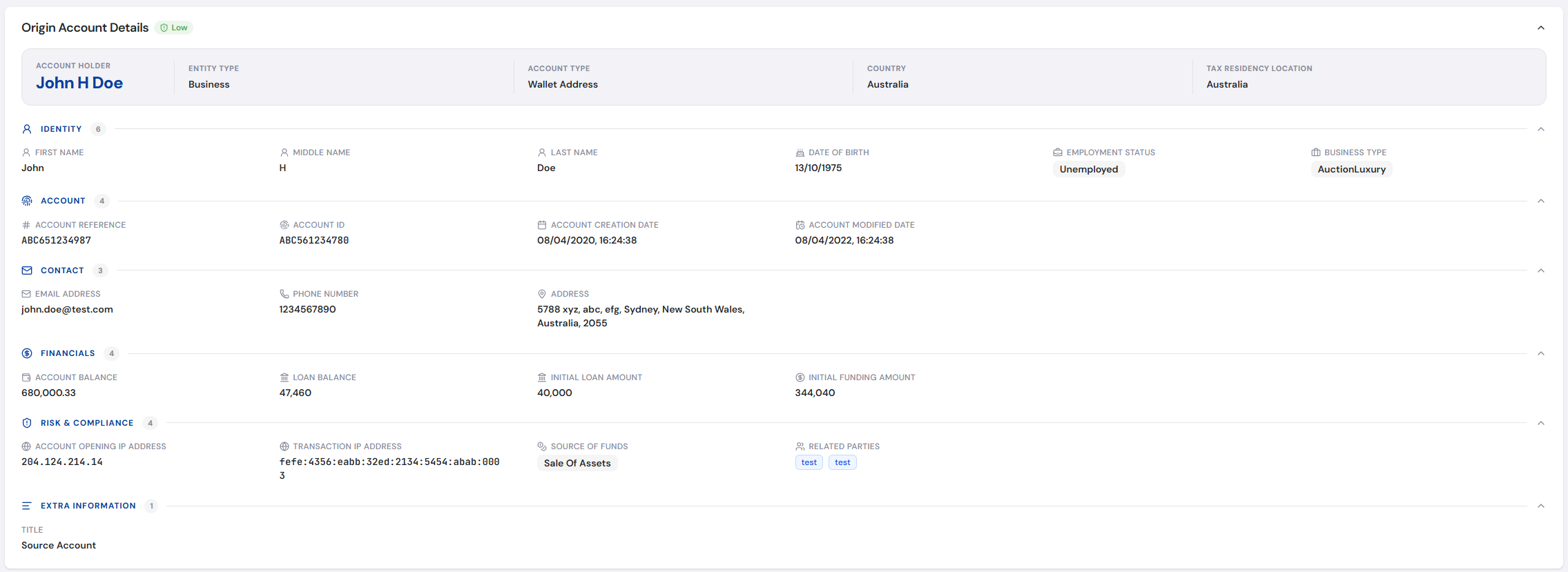
Origin and Destination account details are shown if provided:
Account Details
| Column | Description |
|---|---|
| Account Reference | Unique reference for the account, provided by the user. Using the same reference allows the system to build a customer profile. Multiple Account IDs can be related to the same Account Reference. |
| Account ID | Identifier for the account involved in the transaction (e.g. Bank Account Number, Superannuation Account Number, Gambling Account ID, Wallet Address ID). |
| Account Type | Type of account (e.g. Bank Account, Wallet Address, Insurance Policy). |
| Account Creation Date | Date and time when the account was created. |
| Account Modified Date | Date and time when the account was last modified. |
| Full Name | Full legal name associated with the account. Can be used interchangeably with the individual name fields. |
| First Name | First name of the account holder. Can be used interchangeably with the Full Name. |
| Middle Name | Middle name of the account holder. Can be used interchangeably with the Full Name. |
| Last Name | Last name of the account holder. Can be used interchangeably with the Full Name. |
| Business Type | Type of business activity, if applicable. |
| Entity Type | Nature of the account entity (e.g. Private or Business). |
| Risk Level | Assessed risk rating for the account (e.g. High, Medium, Low). |
| Email Address | Email linked to the account. |
| Phone Number | Contact phone number for the account holder. |
| Date of Birth | Date of birth of the account holder. |
| Account Opening IP Address | IP address recorded at account opening. |
| Transaction IP Address | IP address recorded during transaction activity. |
| Employment Status | Employment status of the account holder (e.g. Employed, Self Employed or Unemployed). |
| Initial Funding Amount | Initial amount funded into the account. |
| Account Balance | Current balance in the account. |
| Loan Balance | Outstanding loan balance, if applicable. |
| Initial Loan Amount | Initial loan amount taken. |
| Tax Residency Location | Country of tax residence for the account holder. |
| Source of Funds | Origin of the funds (e.g. Sale of Assets, Income, Inheritance, Gambling, Insurance). |
| Related Parties | Other parties associated with the account, if any. |
| Address | Physical address linked to the account. |
Create Case
Select Create Case on the Transaction Details page to manually raise a case for the transaction, without requiring a rule to be flagged. This option is only available when a case has not already been created automatically for the transaction. The dialog contains the following fields:
- Transaction Submission Date - The submission of the transaction the case relates to. Displayed as a read-only value when the transaction has a single submission. Required.
- Case Risk Level - Risk level to assign to the new case. Required.
- Regulatory Reporting - Flags the case for regulatory reporting.
Once created, the case appears with any other related cases in the Transaction Details section header, and its Created By field records your user.
Re-evaluate Transaction
The Re-evaluate Transaction button on the Transaction Details page resubmits the transaction for rule processing. This is useful when the transaction data has not changed but you want to evaluate it against a different rule plan — for example, after updating your rules or switching the active plan. A credit is consumed when the transaction is re-evaluated.
Hide Empty Fields
A Show/Hide toggle appears next to the Re-evaluate Transaction button on the Transaction Details page.
The toggle is pre-populated from the Hide Empty Fields > Transaction Details preference on the Profile page.
When set to Hide, any fields with no value are hidden from the Transaction Details and Account Details sections. If all fields within a group are empty (e.g. all Insurance Policy fields), the group heading is also hidden.
Toggling between Show and Hide updates the global preference automatically.
Processed Rules
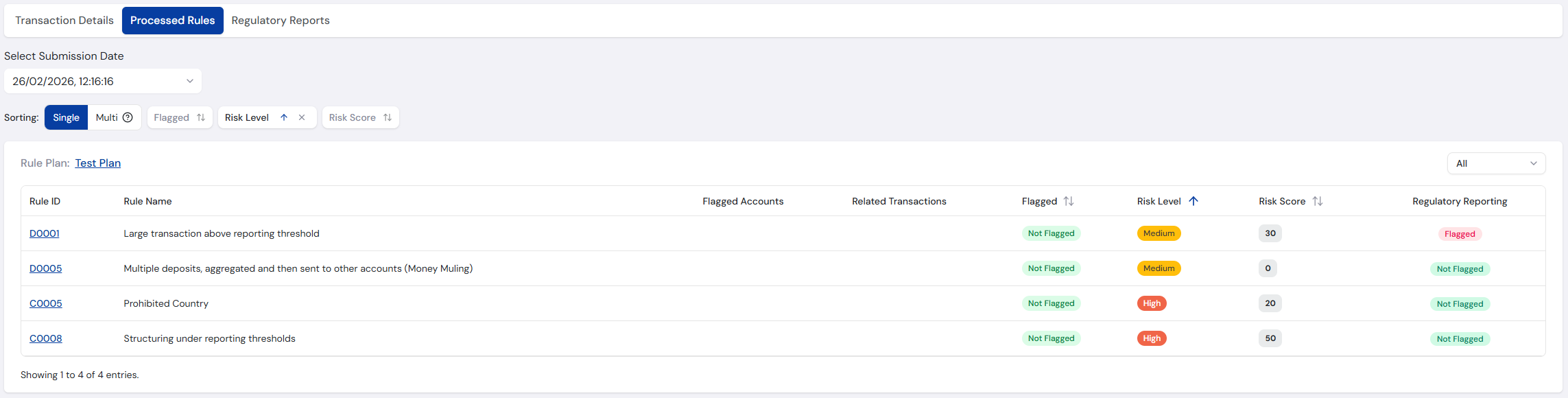
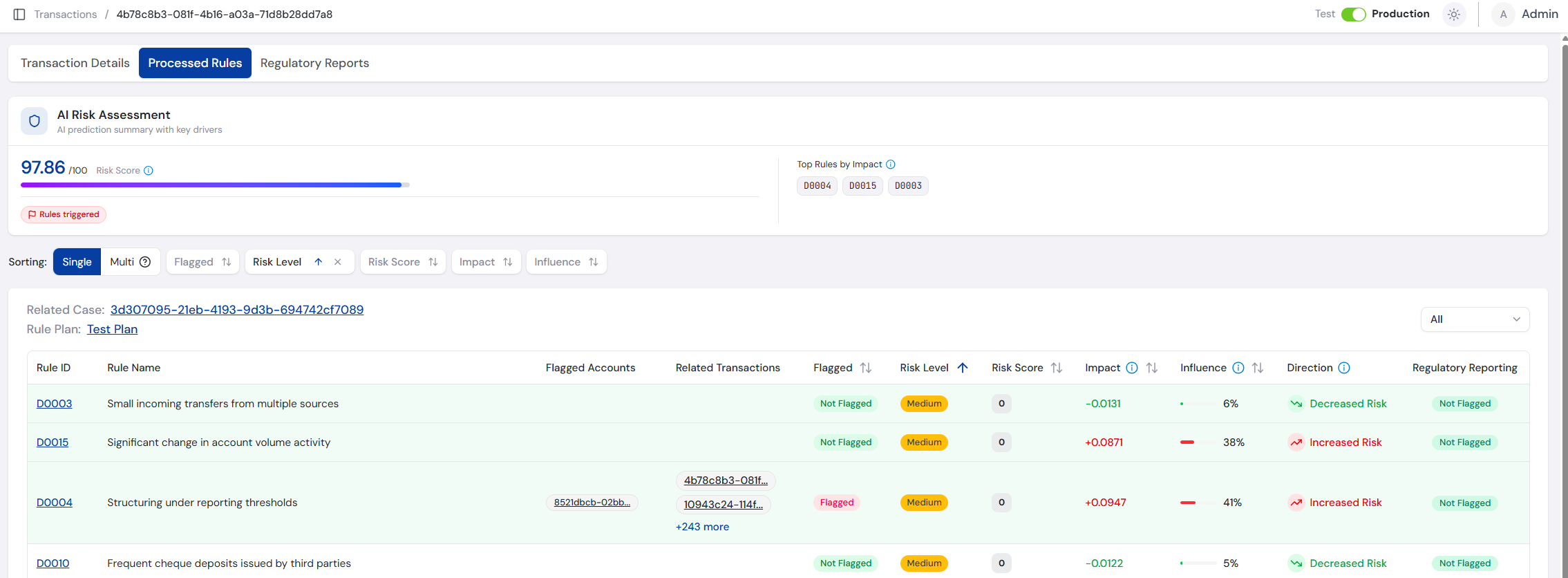
Shows all rules processed as part of transaction monitoring, each with a status of Flagged, Not Flagged, or Error, and links to the rule for further review.
Processed Rules
| Column | Description |
|---|---|
| Rule ID | Unique ID assigned to the rule. |
| Rule Name | Name of the rule. |
| Flagged Accounts | Identifies which accounts were flagged for investigation if the rule was flagged. |
| Flagged | Status of the rule processing: Flagged, Not Flagged, or Error. |
| Risk Level | Current risk level of the rule: Low, Medium, High, Urgent. |
| Risk Score | A numeric value representing the severity of the rule. This score contributes to the overall risk profile when a case is raised. |
| Impact | How many points the rule pushed the AI risk score up or down, compared with a typical transaction, e.g. +0.123. Sortable. Shown only when the transaction was scored. |
| Influence | How much the rule mattered to the AI risk score, relative to the other rules, shown as a bar and a percentage. Sortable. Shown only when the transaction was scored. |
| Direction | Whether the rule pushed the AI risk score up or down: Increased Risk, Decreased Risk or Neutral. Shown only when the transaction was scored. |
AI Risk Assessment
The AI Risk Assessment panel sits above the processed rules table and summarises the AI model's view of the transaction. What it shows depends on the outcome of AI scoring:
- Scored - The AI risk score out of 100 with a gradient bar, the Rules triggered badge when a rule flagged the transaction, and the Top Rules by Impact - up to three rules with the largest effect on the score, in either direction. The rows of the top rules are tinted green in the table.
- Scoring failed - The notice "AI risk assessment could not be completed. The risk score is unavailable." The transaction was still processed on your rules alone.
- AI scoring not enabled - No panel is shown, and the Impact, Influence and Direction columns are hidden.
Hover over the Top Rules by Impact heading and each column header for a short explanation. For how to read Impact, Influence and Direction together, see Explaining a Score.
Regulatory Reports
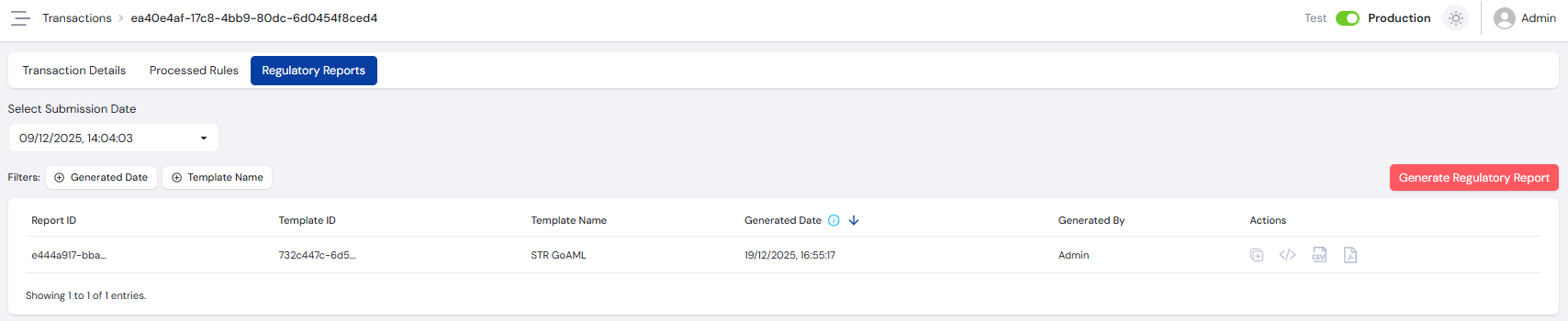
Select the Regulatory Reports tab to generate a new regulatory report from a Regulatory Report Template or view existing reports.
Generate Report
Select from any enabled templates. Once chosen, all Default and Pre-Defined fields are pre-filled with the appropriate data.
If the template allows editing, you can update the pre-filled data and complete any Custom fields. All required fields must have a value before the report can be saved.
Export Report
Once saved, the report appears in the report list. You can Duplicate the report if required, allowing fields to be updated and saved as a new copy.
The reports can be exported in three formats:
- PDF - Downloads the report in PDF format, with fields grouped as document headings and sub-headings.
- CSV - Downloads the report in CSV format, with fields grouped using their headings then sub-headings, and headings added as a prefix to the field name.
- XML - Downloads the report in XML format, with grouping defining how the final XML document is structured. Each top-level group acts as parent to its subgroups and fields.
All regulatory reports are immutable. Once created, a report cannot be edited, modified, or deleted, ensuring it remains a permanent, tamper-proof record for regulatory review and legal proceedings.
For more information on the full transaction flow from submission through to case review, see the Transaction Flow guide.