Batch Upload
Batch Upload is used to view the status of previously submitted batches or submit new batch files.
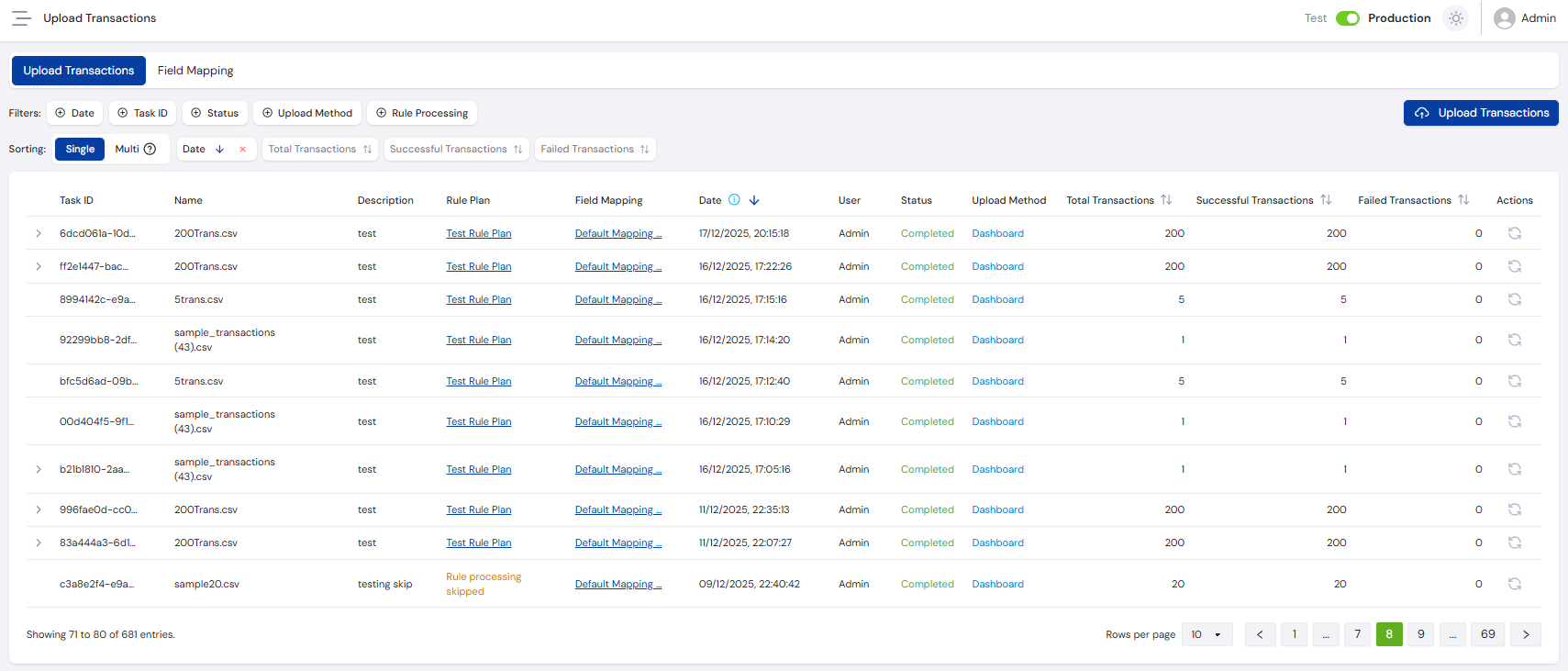
Search Filters
Use the filters below to narrow down batch files. Each field is type-specific to help ensure the correct format. Batches are listed in date order, with the most recently submitted batch at the top.
- Use Task ID to find a specific batch submission.
- Use the Status filter to quickly identify batches that need attention.
Included Filters
| Filter | Type | Description |
|---|---|---|
| Date | Date Picker | Filter batches based on when they were created. |
| Task ID | Text | Partial or full match on a specific ID to find a specific batch. |
| Status | Dropdown | Filter batches based on their current status (e.g. Created, In Progress, Failed, Completed with Error, Insufficient Credits). |
| Upload Method | Dropdown | Filter batches based on whether they were uploaded by Dashboard or API. |
| Rule Processing | Dropdown | Filter batches based on whether they were Processed with rules or Skipped. |
Batch File List
After applying search filters, the results appear in a paginated table:
Batch File Columns
| Column | Description |
|---|---|
| Task ID | Internal processing group identifier for the batch file. |
| Name | Name of the file uploaded for the batch. |
| Date | Date and time the batch was submitted. |
| User | User who submitted the batch. |
| Status | Current status of the batch (e.g. Created, In Progress, Failed, Completed with Error, Insufficient Credits). |
| Total Transactions | Total number of transactions included in the batch file. |
| Successful Transactions | Total number of transactions from the batch file that were successfully processed. This is a live update with a short delay. |
| Failed Transactions | Total number of transactions from the batch file that could not be processed due to an error. This is a live update with a short delay. |
| Actions | Available actions for the batch. See Re-evaluate Batch below. |
Upload Details
Select a batch to expand its row and show its Upload Details:
Upload Details
| Field | Description |
|---|---|
| Rule Plan | Link to the Rule Plan that was used for processing. Select the copy icon to copy its ID. |
| AI Model Pipeline ID | ID of the training pipeline whose AI model scored the batch. Select the copy icon to copy it. Only shown when an AI model scored the batch. |
| Field Mapping | Link to the Mapping Template that was used for processing. Select the copy icon to copy its ID. |
| Upload Method | Denotes whether the batch was uploaded by Dashboard or API. |
| Description | Description provided when the batch was submitted. |
A batch keeps the AI model that was enabled on the active rule plan when it was submitted, even if the enabled model changes while the batch is processing. For how batches are scored, see How AI Risk Scoring Works.
If the batch has been re-evaluated, the expanded row also lists its Re-evaluated Batches.
Completed With Error
If a batch finishes with the Completed with Error status, that means one or more of the transactions failed to upload due to an error with the data provided. The system allows you to download two files to assist with troubleshooting by selecting the row of the relevant batch:
- Error Records - A complete
.csvbatch file including only the transactions that had errors. This allows you to fix the errors then submit the file again to avoid any duplicate transactions. - Error Details - A
.csvfile listing information about each transaction that failed:- RowNumber - The corresponding row number in the Error Records file.
- ErrorMessage - A description of the error that occurred.
- FieldName - The field that the error is referencing.
- FieldValue - The value of the field that had the error.
Re-evaluate Batch
The Re-evaluate action resubmits the entire batch for rule processing. This is useful when the transaction data has not changed but you want to evaluate it against a different rule plan - for example, after updating your rules or switching the active plan. Each transaction in the batch consumes a credit when re-evaluated, regardless of whether it was previously processed.
Upload Transactions
To submit a new batch file, select the Upload Transactions button in the top right corner of the Batch Upload page to navigate to the following screen.
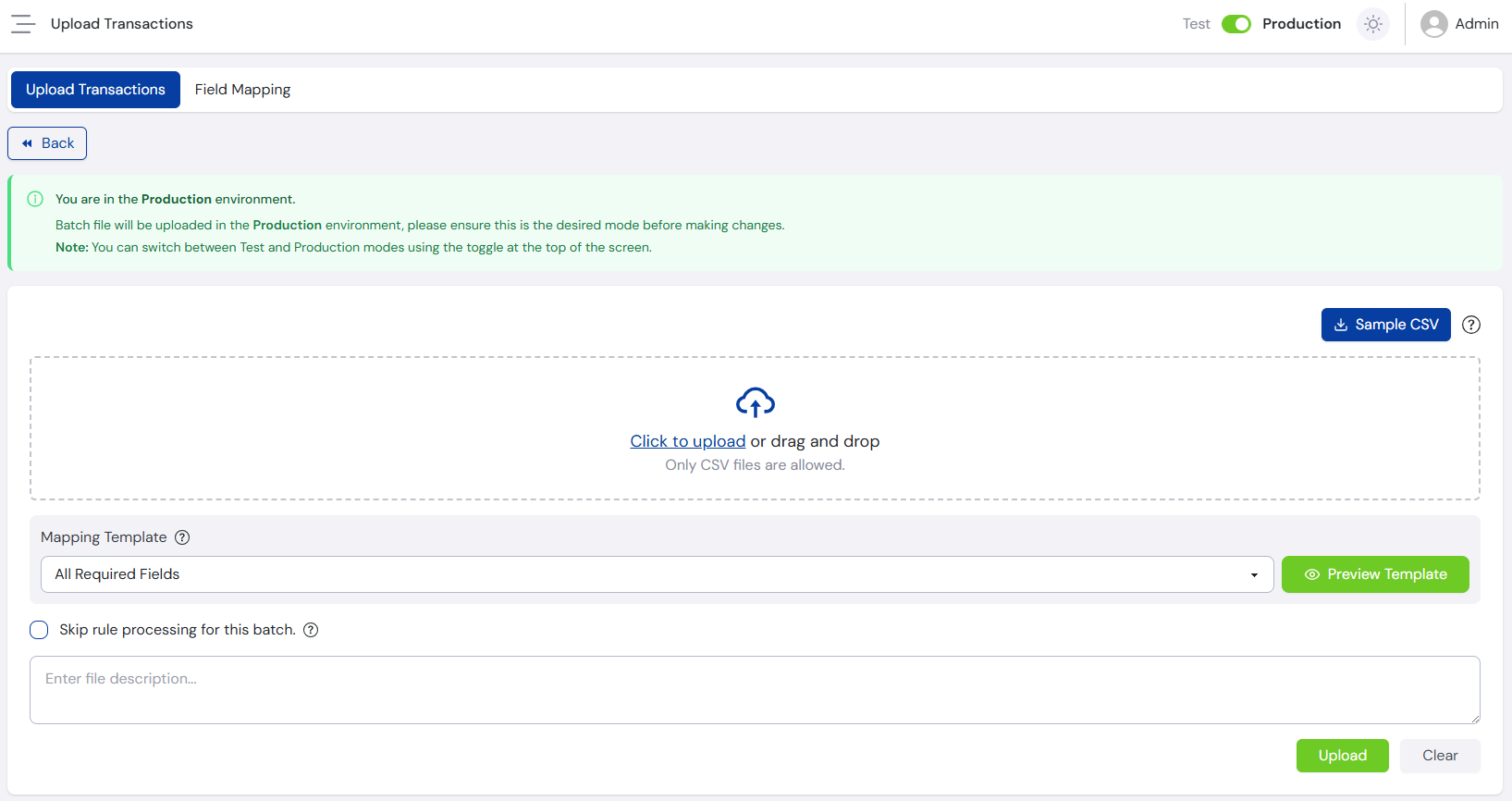
The banner at the top of the screen shows the Environment you are currently in: Production or Test. When submitting a batch file, the currently selected environment determines which environment the transactions are saved to.
A sample_transactions.csv is available for download which contains all the available transaction fields supported by FraudShield listed as columns. It also contains one sample transaction as an example for field contents, which can safely be deleted.
For more information on which fields are required and field validation rules, see the Submit Transaction API docs.
When the csv batch file is ready for upload, either drag and drop the file from your computer or select to upload from a file browser. A description must be added before upload, but can be anything from the current date to a long-form note about the batch file's contents.
When the file is added, FraudShield automatically performs a preliminary scan and notifies you of any validation errors that would cause the upload to fail. These errors must be resolved before the file can be uploaded.
Only the first 100 rows are scanned. FraudShield uses this to identify major column name issues and flag patterns that may cause other transactions to fail, while keeping response times fast.
If more than one mapping template is set up, select which one to use. Use the Preview Template button to confirm the file matches the template correctly. See the Field Mapping section below.
Select the Skip rule processing for this batch option to upload a batch file without processing it against any rules. No cases will be created. This is useful for loading historical data into the system that does not need to be investigated. Transactions submitted using this method will still consume usage credits.
Once you're ready, select the Upload button. FraudShield uploads the file and returns you to the batch summary screen, where live updates for the batch process are shown.
Email notifications for batch processing completion are enabled by default. To manage these settings, see the Email Notifications guide.
Field Mapping
Field Mapping allows you to create reusable mapping templates that translate the column names in your own CSV files to the corresponding system fields in FraudShield. This removes the need to reformat your data to match the system's expected structure on every upload, and will be familiar if you have worked with CRM or content management systems.
A Default Mapping Template is provided out-of-the-box, created automatically when your account is set up. This template maps fields using FraudShield's standard column naming convention and can be used as a reference when creating your own.
The Field Mapping tab is accessible alongside the Upload Transactions tab at the top of the Batch Upload page.
Mapping Templates List
All existing mapping templates are displayed in a table:
Mapping Templates Columns
| Column | Description |
|---|---|
| ID | Unique identifier for the mapping template. |
| Name | User-defined name for the template. |
| Description | Optional description. Does not affect system behaviour. |
| Created At | Date and time the template was created. |
| Created By | User who created the template. |
| Modified At | Date and time the template was last modified. |
| Modified By | User who last modified the template. |
| Actions | Available actions for the template (see below). |
The following actions are available for each template:
- Active Toggle - Enables or disables the template for use when uploading batch files.
- View - Opens a read-only view of the template's field mappings.
- Edit - Opens the template for editing.
- Duplicate - Creates a copy of the template, which can then be edited independently.
- Delete - Permanently deletes the template.
Creating a Mapping Template
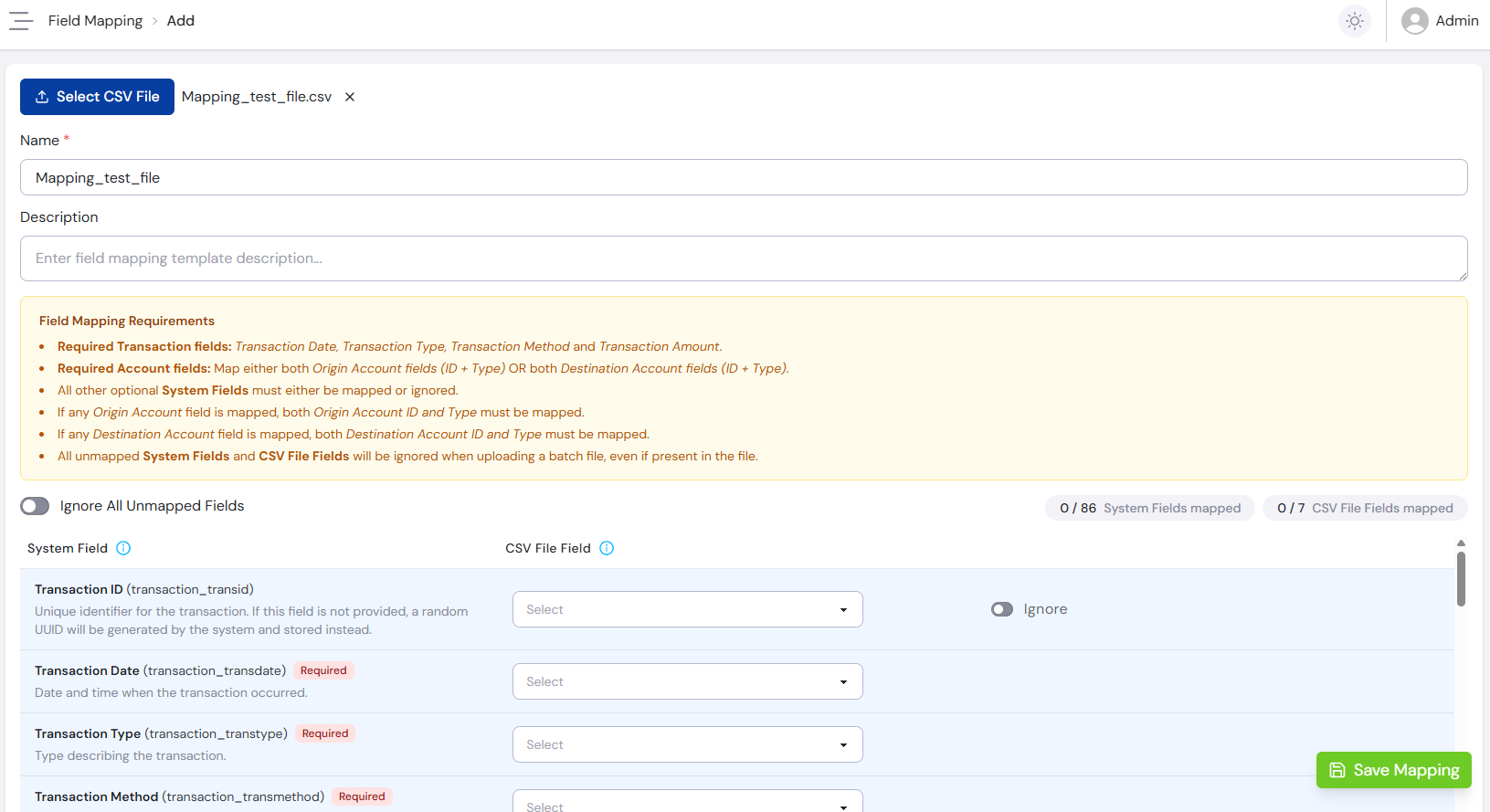
To create a new template, select the + Add Mapping button to open the mapping configuration page.
1. Select a CSV File
Before configuring the template, you must upload a sample CSV file that represents the format you intend to use. FraudShield reads the column headers from this file and uses them to populate the CSV File Field options during mapping. FraudShield uses this file only to build the template and does not store or process it as a batch.
2. Enter Template Details
Template Details
| Field | Required | Description |
|---|---|---|
| Name | Yes | A descriptive name for the template. This will appear in the template selector when uploading a batch file. |
| Description | No | An optional note about the template's intended use or the CSV format it corresponds to. |
3. Configure Field Mappings
The mapping table lists all available System Fields on the left, each with its internal field name and a brief description. For each system field, use the CSV File Field dropdown to select the corresponding column from your uploaded CSV file.
The following requirements must be met before the template can be saved:
- Required Transaction fields -
Transaction Date,Transaction Type,Transaction Method, andTransaction Amountmust be mapped. - Required Account fields - Either both Origin Account fields (
ID+Type) or both Destination Account fields (ID+Type) must be mapped. - If any Origin Account field is mapped, both
Origin Account IDandOrigin Account Typemust be mapped. - If any Destination Account field is mapped, both
Destination Account IDandDestination Account Typemust be mapped. - All unmapped System Fields and CSV File Fields will be ignored during batch upload, even if present in the file.
Fields marked as Required must be assigned a CSV column. All optional system fields must either be mapped to a CSV column or explicitly toggled to Ignore - they cannot be left in an unset state. The Ignore All Unmapped Fields toggle at the top of the mapping table provides a quick way to mark all currently unmapped optional fields as ignored in one action, which is useful when your CSV only covers a subset of the available system fields.
The CSV File Field dropdown for each row is populated with the column headers from your uploaded CSV file. Each option also displays the corresponding value from the first data row of the file as an example, helping you confirm you are selecting the correct column.
The counters at the top right of the mapping table display a live count of how many system fields and CSV file fields have been mapped, helping you track progress as you work through the configuration.
Once all required fields are mapped, select Save Mapping to save the template.
For information on submitting transactions using a batch file, see the Transaction Flow guide.